Windows 11 Not Getting Updates? Why, and How to Fix It
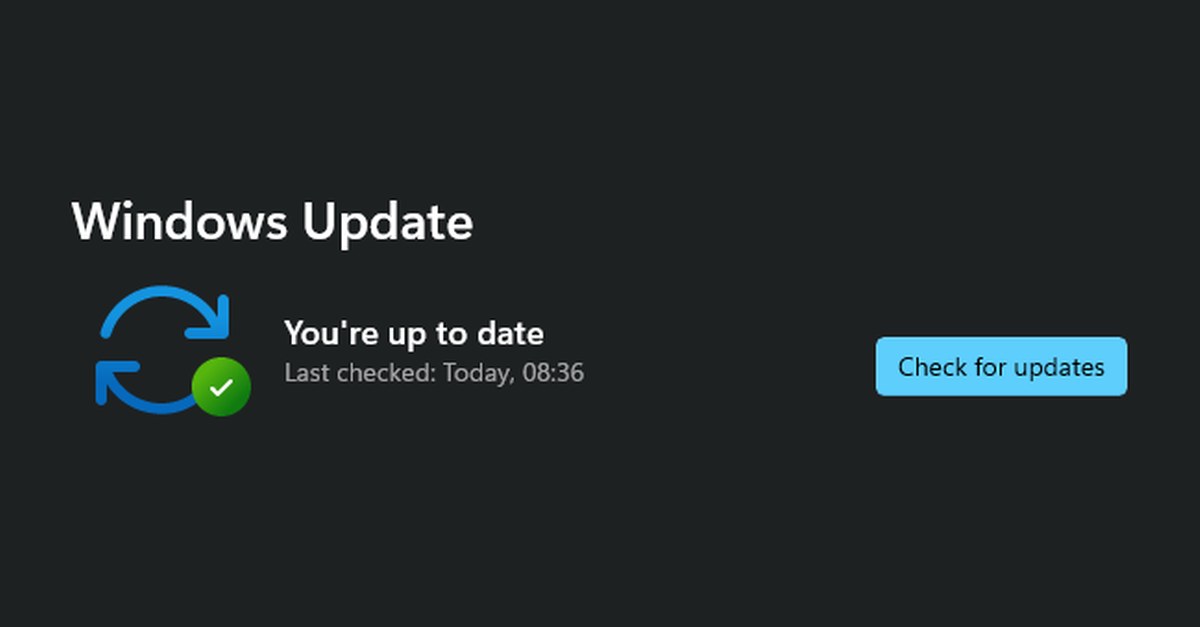
That's a screenshot I took on my own PC. Green tick, "You're up to date", checked a couple of hours ago. On my PC it's true. On some of the PCs I see, Windows Update shows exactly the same screen and the last security update went on months ago.
"You're up to date" only means Windows Update looked and found nothing it's willing to give your PC right now. If your version of Windows has run out of support, or your PC was never meant to run Windows 11 in the first place, there may be nothing left to offer. It still says you're up to date.
So here's how to check properly, the reasons updates stop, and how to get them going again.
How to check you're really getting updates
Two checks, and they take a minute.
First, press Win+R, type winver and press Enter. The little window that opens tells you your version. Then compare it with this:
| Version | Home and Pro | Enterprise and Education |
|---|---|---|
| 26H2 | Supported until October 2028 | Supported until October 2029 |
| 25H2 | Supported until October 2027 | Supported until October 2028 |
| 24H2 | Ended 13 October 2026 | Supported until October 2027 |
| 23H2 | Ended November 2025 | Last update 10 November 2026 |
| 22H2 and older | Ended | Ended |
Most home PCs are Home or Pro. If yours came from work or school it might be Enterprise or Education, and winver shows that too.
Second, go to Settings > Windows Update > Update history and open Quality Updates. You're looking for a "Cumulative Update" with a recent date next to it. Microsoft releases one on the second Tuesday of every month, so the newest one should be no more than about five weeks old.
If the newest cumulative update is from months ago, or you see a run of "Failed to install" lines, something's wrong. One of the reasons below will almost certainly explain it.
Why a PC stops getting updates
It's on a version that's out of support
This is the big one. Microsoft supports each Home and Pro version of Windows 11 for two years, then stops. 24H2 Home and Pro got its last patch in October, and I wrote about that in Windows 11 24H2 has lost support.
Normally Windows moves you on to the next version by itself. When it doesn't, there's usually another problem underneath, and it's normally one of the others on this list. The fix is to get onto 25H2 or 26H2. My 26H2 post covers the update, and on a healthy PC it's about ten minutes and a restart.
One catch for anyone still on 23H2: the quick 26H2 enablement package only works from 24H2 or 25H2. From 23H2 it's a full upgrade, which takes longer and needs more free space.
Windows 11 was forced onto hardware that doesn't support it
Plenty of older PCs were put on Windows 11 using Rufus, registry tweaks or other bypass tools. They work, mostly. But Windows Update doesn't have to offer them the next version, and often it doesn't. Every new version then has to be pushed on by hand, and if nobody does that, the PC quietly drops out of support.
Very old processors have a harder limit. Since 24H2, Windows 11 needs a processor that supports two instructions called SSE4.2 and POPCNT. Chips from roughly the Core 2 Duo era don't have them, so on those PCs 23H2 is as far as Windows 11 goes. 23H2 Home and Pro ran out of support a year ago. There are community tools that patch around the check, but I wouldn't run a PC you bank on like that. At that point it's time for a straight conversation about repairing or replacing it.
Still on Windows 10
Windows 10 only gets security updates now if it's enrolled in Extended Security Updates. Enrolment is free for home users and runs until October 2027. Not enrolled means nothing since October 2025. My Windows 10 to 11 guide covers both enrolling and upgrading.
Updates are paused or blocked
Worth ruling out before anything else. In Settings > Windows Update, a paused PC says "Updates paused" with a resume button. Easy to spot.
Harder to spot is a PC where someone has blocked updates on purpose. A relative who "didn't want Windows messing things up", an old update blocker app, a registry setting that pins Windows to one version. If Windows Update shows a line saying Some of these settings are managed by your organisation on a home PC that has never been anywhere near a company, something has changed its update settings. That needs tracking down and undoing.
The other one is metered connections. If your Wi-Fi is marked as metered (Settings > Network & internet > Wi-Fi > your network), Windows holds back most downloads unless you've turned on Download updates over metered connections. People set this on a phone hotspot once and forget it's there.
Microsoft has put a hold on your PC
Sometimes Microsoft deliberately holds a new version back from PCs with a driver or app it knows causes problems. They call it a safeguard hold. Your monthly security updates still arrive while it's in place, so as long as your current version is supported this isn't urgent. Leave it alone. Forcing past a hold is how people end up with no sound, no Wi-Fi or worse.
Not enough free space
This is the most common reason I find updates failing on cheaper laptops. A lot of budget machines were sold with 64GB or 128GB of storage, and after Windows, Office and a couple of years of photos there's almost nothing left. Monthly updates need a few gigabytes to download and unpack. A full version upgrade needs a lot more.
My rule of thumb is to keep at least 20GB free. Below 10GB, updates start failing in odd ways, often with error messages that never mention space at all.
To check, open Settings > System > Storage. To clear space safely:
- In Storage, open Temporary files and tick everything except Downloads (check what's in your Downloads folder first, people keep important things in there)
- Turn on Storage Sense so Windows clears temporary files by itself
- Search the Start menu for Disk Cleanup, click Clean up system files and tick Windows Update Cleanup. This can free several gigabytes of old update files
- Move photos and videos to an external drive. Make sure they're actually on it before deleting anything
There's more in my post on speeding up a slow Windows 11 PC. If the laptop only has 64GB, though, you'll be fighting this every few months. Sometimes the honest answer is that the laptop was never big enough.
The partition problems: yes, there are known bugs
You can have 200GB free on your C: drive and still get update failures caused by running out of space. That's because your drive has a few small hidden partitions as well as C:, and two of them have caused update problems in the last couple of years.
EFI system partition full (0x800f0922)
This is the one you're most likely to hit on Windows 11 right now. The EFI partition holds the files your PC needs to start Windows, and on most laptops it's only 100MB. Windows needs around 15MB free in there to update. Over the years it fills with font files and leftovers from manufacturers, Dell BIOS updates being a well-known one, and eventually there isn't room.
The confusing part is the message. Windows says "We couldn't update the system reserved partition", but the 16MB partition actually called Microsoft Reserved has nothing to do with it. It's the EFI partition that's full.
Microsoft confirmed this as a known issue in May 2026, when that month's update (KB5089549) failed on 24H2 and 25H2 PCs with 10MB or less free in the EFI partition. The update would get to about 35% during the restart, then say Something didn't go as planned. Undoing changes. Microsoft fixed that update in KB5089573 at the end of May, but the same squeeze still catches full version upgrades, including the move to 25H2 and 26H2.
The fix is to clear space in the EFI partition (usually unused fonts) or make the partition bigger. Both mean working on the partition your PC boots from. Delete the wrong file and the PC won't start. I'd only try it yourself if you're comfortable in a command prompt and have a full backup.
Recovery partition too small (0x80070643)
This one goes back to January 2024. Microsoft released a security fix for the Windows recovery environment (KB5034441 on Windows 10) that needed 250MB of free space in the recovery partition. Many PCs didn't have it, so the update failed with 0x80070643 every time Windows tried it. Microsoft never made the partition bigger automatically. Its advice was to resize it yourself, and later it stopped offering that update to Windows 10 PCs altogether.
You'll still see this error on some machines. The good news is that it usually only affects that one recovery update. Look in Update history. If your monthly cumulative updates are installing fine and only the recovery one keeps failing, your PC is still getting its security fixes. I'd leave it rather than start resizing partitions to cure a red line in Update history.
How to reset Windows Update
Only do this if you're on a supported version (see the table above) and updates are failing. On an unsupported version, resetting Windows Update won't help. You need to get onto a newer version first.
Work through these in order. Most PCs are sorted by step two or three. Back up anything important before you start. If you haven't got a backup routine, my backup guide will get you set up.
1. The basics
Restart the PC properly (Start > Power > Restart, not just closing the lid). Check you've got at least 20GB free. Turn off any VPN. Then try Check for updates again. It sounds too simple, but a pending restart blocks a lot of updates.
2. Run the troubleshooter
Go to Settings > System > Troubleshoot > Other troubleshooters and run Windows Update. On recent versions it opens in the Get Help app. It won't fix everything, but it costs nothing and sometimes resets the right thing.
3. Clear out the update files
This is the proper reset. Windows keeps downloaded updates in a folder called SoftwareDistribution, and if something in there is corrupt it can keep failing on the same file forever. You stop the update services, rename the folders so Windows builds fresh ones, then start the services again.
Right-click the Start button, choose Terminal (Admin), and say yes to the prompt. Then type these one line at a time, pressing Enter after each:
If a ren line says access is denied, a service has started itself back up. Run the three net stop lines again and retry. Then restart the PC and check for updates.
Don't panic if Update history looks nearly empty afterwards. That list lives in the folder you just renamed. Your updates are still installed. Once everything's working you can delete the two .old folders.
4. Repair Windows' own files
Still failing? In the same admin Terminal, run these two. The first can sit at the same percentage for ages, so leave it alone until it finishes:
DISM repairs the copy of Windows that sfc uses to fix things, which is why it goes first. Restart afterwards and try the update again.
5. Reinstall Windows without losing anything
This step gets most stubborn PCs going again, and plenty of people don't know it exists. Go to Settings > System > Recovery and, under Fix problems using Windows Update, click Reinstall now. Windows downloads a fresh copy of your current version and reinstalls it over the top. Your files, apps and settings stay where they are.
It takes an hour or so depending on your internet. Keep the laptop plugged in. Windows may also offer this by itself when an update fails, with a message saying Reinstall your current version of Windows to repair system files and components. Same thing.
If even that fails, the last resort is a repair install from Microsoft's Windows 11 download page: run the installer from inside Windows and choose to keep your files and apps. If that won't go through either, there's a deeper problem, and it's usually one of the partition issues above or a failing drive.
If you'd rather not do it yourself
Most of this is safe to work through on your own, and steps one to five fix the vast majority of PCs. The partition work is where I'd stop if you're not confident, because a mistake there leaves you with a PC that won't boot. If you're in St Helens or nearby and your PC has stopped updating, get in touch and I'll find out why. It's one of the more common jobs I do under computer repairs in St Helens.

Mark has been fixing computers since the late '90s and went self-employed in 2008. Based in St Helens since 2013, he works evenings and weekends from his home in Laffak, doing friendly, affordable repairs for PCs, laptops, and Macs. See reviews on Google
PC stopped updating?
Updates failing, stuck on an old version, or just not sure if your PC is protected? Get in touch to book it in and I'll get it updating again.
★★★★★"Very quick diagnosis and repair of laptop. Really good but most of all good value, as a person with limited tech knowledge i often get ripped off on repairs but not with your local tech guy is honest and professional. Highly recommended 5★ service!"
— SMT, via Google