How to Back Up Your PC (and Why Most People Don't Until It's Too Late)
I've had this conversation hundreds of times. Someone brings me their PC, the hard drive has failed, or they've been hit by ransomware, or they've accidentally deleted something important. I ask if they have a backup. They already know the answer.
Everyone knows they should back up. Almost nobody actually does it, until the day they lose something they can't get back. Family photos, years of documents, university coursework the night before a deadline. I've seen it all.
The good news is that backing up properly is easier than most people think, and most of it can be completely automatic. Set it up once and forget about it.
What Actually Needs Backing Up?
You don't need to back up your entire computer, just the stuff you can't replace. Windows can be reinstalled. Programs can be re-downloaded. But your personal files? Those are gone if you lose them.
On Windows, almost everything you care about is in one place: C:\Users\YourName. Inside that folder you'll find:
- Desktop: where most people dump everything
- Documents: Word files, spreadsheets, PDFs
- Downloads: full of things you meant to move somewhere safe
- Pictures: photos, screenshots, phone backups
- Videos: home videos, screen recordings
There are a couple of things people forget:
- Browser bookmarks: if you're signed into Chrome or Edge with a Google/Microsoft account, these sync automatically. If you're not signed in, they only exist on this machine
- App data: things like Outlook email archives (.pst files), accounting software databases, or game saves. These are sometimes stored in
AppDatawhich is a hidden folder. If you use specialist software, it's worth checking where it stores its data
C:\Users\YourName) and click Properties to see the total size. That tells you how much space you need for a backup, and whether it'll fit on a USB stick or needs something bigger.
The Simple Rule: Two Copies, Two Places
The IT industry has something called the "3-2-1 rule": three copies, two different types of storage, one off-site. That's great advice for businesses, but for most people at home, a simpler version works just as well:
Keep two copies of your important files, in two different places.
One copy on your PC (that's where they already are). One copy somewhere else: an external hard drive, a cloud service, or ideally both. The point is that if one fails, the other still has your stuff.
Why two places? Because an external hard drive sitting on the same desk as your PC doesn't help if your house floods, gets burgled, or there's a fire. That's where cloud backup comes in. Your files are stored somewhere else entirely, accessible from any device.
Option 1: Cloud Backup (Easiest)
This is the best option for most people because once it's set up, it's completely automatic. Your files sync to the cloud in the background, so you don't have to remember to do anything.
OneDrive (built into Windows)
If you're using Windows 10 or 11, you already have OneDrive installed. It comes with 5GB free, which is enough for documents but not much else. If you have Microsoft 365 (the one you pay monthly for Word, Excel, etc.), you get 1TB, more than enough for most people.
To turn on OneDrive folder backup, go to Settings → Accounts → Windows backup:
Toggle on Desktop, Documents, and Pictures. From that point on, everything in those folders is automatically backed up to your Microsoft account. If your PC dies tomorrow, you sign into OneDrive on another device and everything's there.
OneDrive also works as two-way sync. If you edit a file on your phone or another PC signed into the same account, the changes appear everywhere. Handy if you use more than one device.
Google Drive
If you're more of a Google person, Google Drive gives you 15GB free (shared with Gmail and Google Photos). You can install Google Drive for Desktop which creates a folder on your PC that syncs to the cloud. Drag files in and they're backed up.
iCloud (Mac users)
On a Mac, iCloud does the same thing. Go to System Settings → Apple ID → iCloud → iCloud Drive and turn on Desktop & Documents sync. You get 5GB free, or 50GB for 99p/month.
Option 2: External Hard Drive
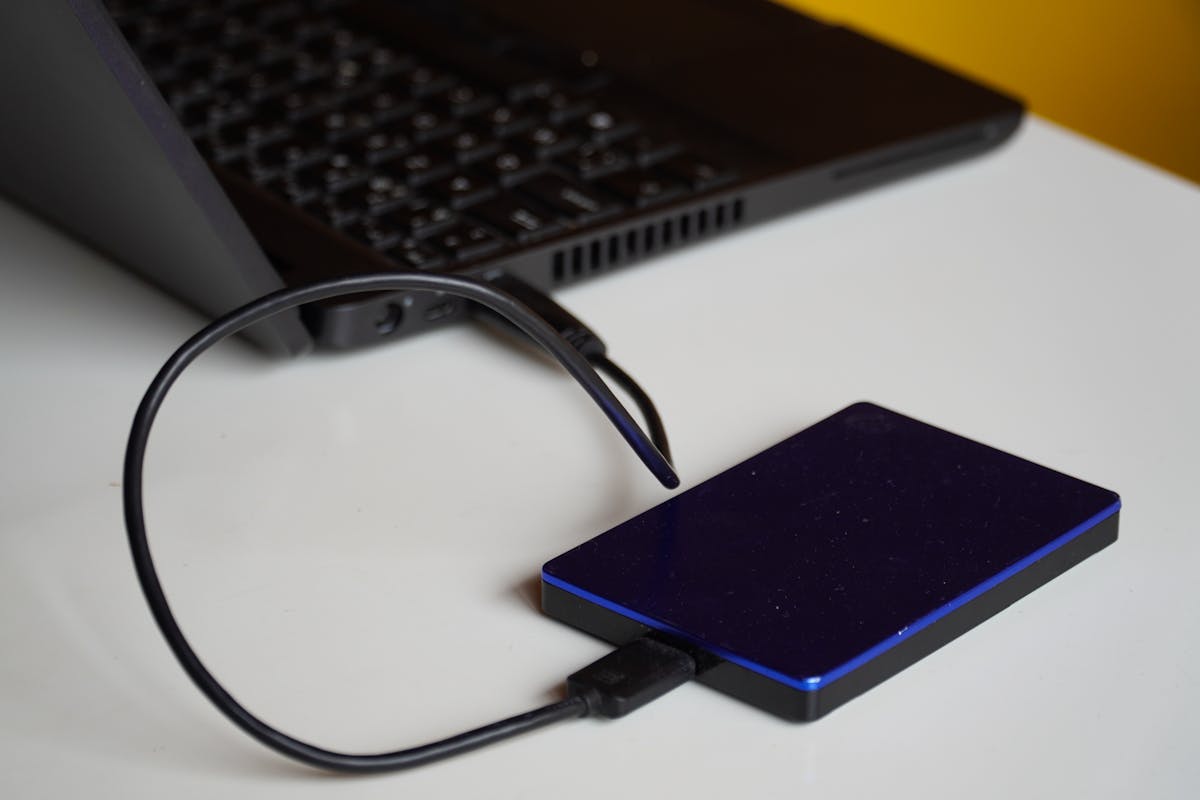
Cloud backup is great for day-to-day protection, but having a physical copy of your files gives you an extra safety net. External hard drives are cheap: a 1TB portable drive costs around £40–50 and fits in your pocket.
The simple way: just copy your files
Plug in the drive, open your user folder (C:\Users\YourName), and copy your Desktop, Documents, Pictures, Downloads, and Videos folders across. Done. It's not automatic, but it works.
How big a drive do you need? At least double the size of your data. If you've got 200GB of files, get a 500GB or 1TB drive. This gives you room to keep multiple backups over time.
The automatic way: File History
Windows has a built-in feature called File History that automatically backs up your files to an external drive whenever it's plugged in. It keeps versions too, so if you accidentally overwrite a document, you can go back to an earlier version.
To set it up, search for "File History" in the Start menu, plug in your external drive, and click Turn on:
File History saves copies of your files so you can get them back if they're lost or damaged.
Copy files to:
BACKUP (E:) 931 GB free of 931 GB
File History is on
Files last copied on 19/03/2026 14:32
From then on, Windows backs up your files automatically every hour (you can change the frequency). Just leave the drive plugged in, or plug it in regularly and it'll catch up.
Option 3: Both (Best)
The best setup is both: cloud for automatic, always-on protection, and an external drive for a local copy you can access instantly without an internet connection.
- Cloud (OneDrive / Google Drive) handles the day-to-day. Every change syncs automatically, and your files are accessible from anywhere
- External drive gives you a full local backup. Fast to restore from, works without internet, and protects against the (unlikely) scenario of losing access to your cloud account
This also means you're covered in different disaster scenarios. Cloud saves you if your hardware fails. The external drive saves you if you lose internet or your cloud account gets compromised.
What About Phone Photos?
Your phone probably has thousands of photos on it, and for a lot of people, those are the most irreplaceable files they own. Phones can be lost, stolen, dropped in water, or just stop working one day.
- iPhone: Turn on iCloud Photos (Settings → Photos → iCloud Photos). Your photos sync automatically. The free 5GB fills up fast with photos, so the 50GB plan at 99p/month is worth it
- Android: Use Google Photos (usually pre-installed). Open the app, tap your profile picture, and make sure backup is turned on. The 15GB free tier is shared with Gmail and Drive
- Either platform: OneDrive has a camera upload feature on both iPhone and Android. If you're already using OneDrive on your PC, your phone photos end up in the same place. Great for keeping everything together
How Often Should You Back Up?
If you're using cloud backup (OneDrive, Google Drive, iCloud), you don't need to think about it. It happens automatically in the background. Every time you save a file, it syncs.
If you're relying on an external drive, once a month at minimum. Set a reminder on your phone if you have to. If you're doing important work (coursework, business stuff, creative projects), weekly is better. Think about how much work you'd lose if the PC died right now, and back up often enough that the answer is "not much."
What Backup Won't Protect You From
There's an important thing most backup guides don't mention: sync is not the same as backup.
If you're using OneDrive or Google Drive to sync your files, and ransomware encrypts everything on your PC, those encrypted files can sync to the cloud too, overwriting the good copies. Both OneDrive and Google Drive have version history that lets you roll back to earlier versions of files, which helps. But it's not bulletproof, and restoring thousands of files one by one from version history is painful.
This is where your external drive backup becomes critical. If the drive was unplugged when the ransomware hit, those files are untouched.
Air-gapped and immutable backups
In the IT world, the gold standard for protection against ransomware is what's called an air-gapped backup or an immutable backup:
- Air-gapped means the backup is physically disconnected from your computer and network. Ransomware can't encrypt what it can't reach. An external hard drive that you unplug after backing up is a simple air-gapped backup: it's offline, so nothing can touch it
- Immutable means the backup is locked so it can't be changed or deleted, even by someone (or something) with full access to your system. Some cloud backup services offer this: once a file is backed up, it can't be overwritten or removed for a set period
For most home users, the practical version of this is simple: back up to an external drive and unplug it when you're done. If you rotate between two drives (one plugged in, one in a drawer), you've always got a clean copy even in a worst-case scenario. That's a basic rotated air-gapped backup, and it costs nothing beyond the price of two drives.
If you've already lost files to a failed drive or an accidental delete and you didn't have a backup in place, I offer data recovery in St Helens and can usually pull most of it back for you.

Mark has been fixing computers since the late '90s and went self-employed in 2008. Based in St Helens since 2013, he works evenings and weekends from his home in Laffak — friendly, affordable repairs for PCs, laptops, and Macs. See reviews on Google
Want a backup solution that just works?
If you're in St Helens or the surrounding areas and you'd like a proper backup set up on your PC (cloud, external drive, or both), I can put together a solution that fits your needs and make it as automated and user-friendly as possible. You won't have to think about it.
★★★★★"Great guy came as soon as possible and repaired my computer no hassle, cheers mate"
— Lloyd Sharples, via Google