Virus Warnings After One Mistyped Letter: A St Helens Home Visit
The phone went on Monday evening. An older couple near St Helens town centre, worried, because their computer kept telling them it had a virus. They use it for their shopping, their banking and keeping in touch with family, so a virus warning isn't something they could just ignore and hope it went away.
I went round that evening. It turned out to be a lot less serious than it looked. How it got there is the interesting bit, and it started with one wrong letter.
It started with a leaflet
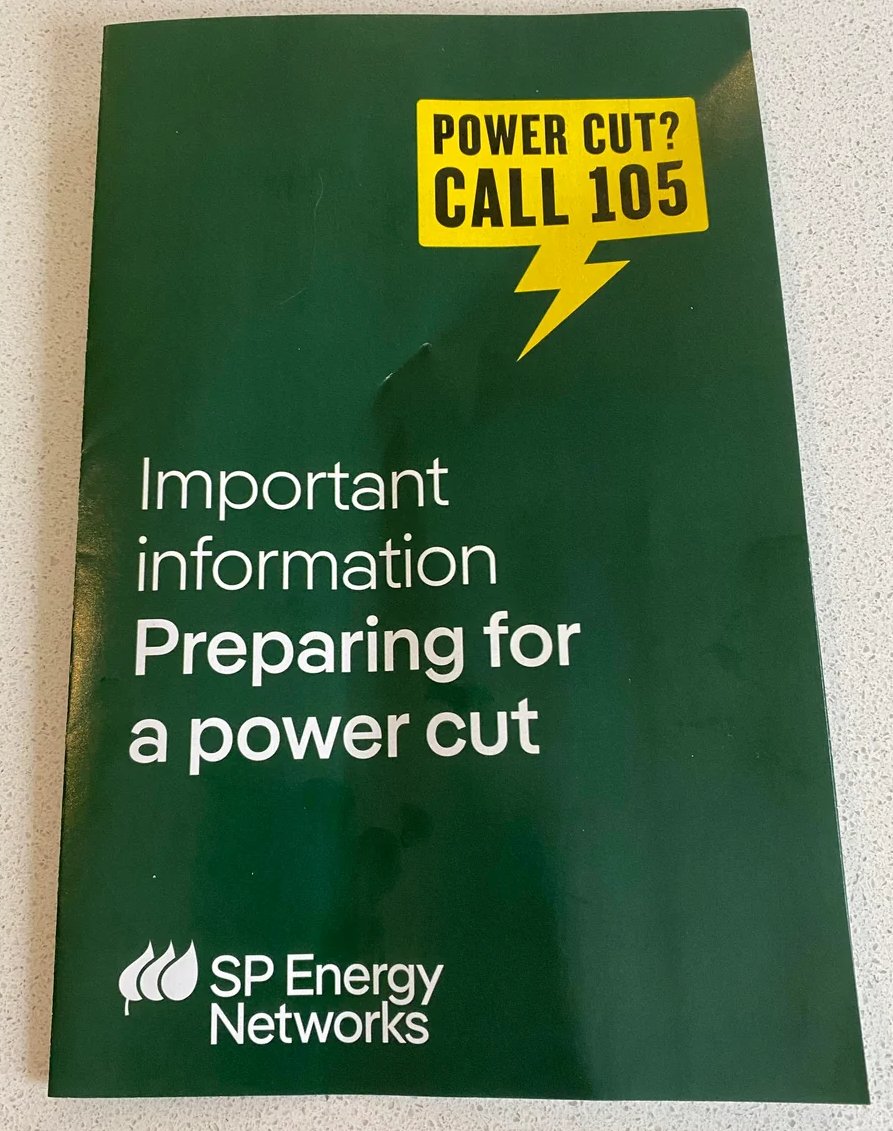
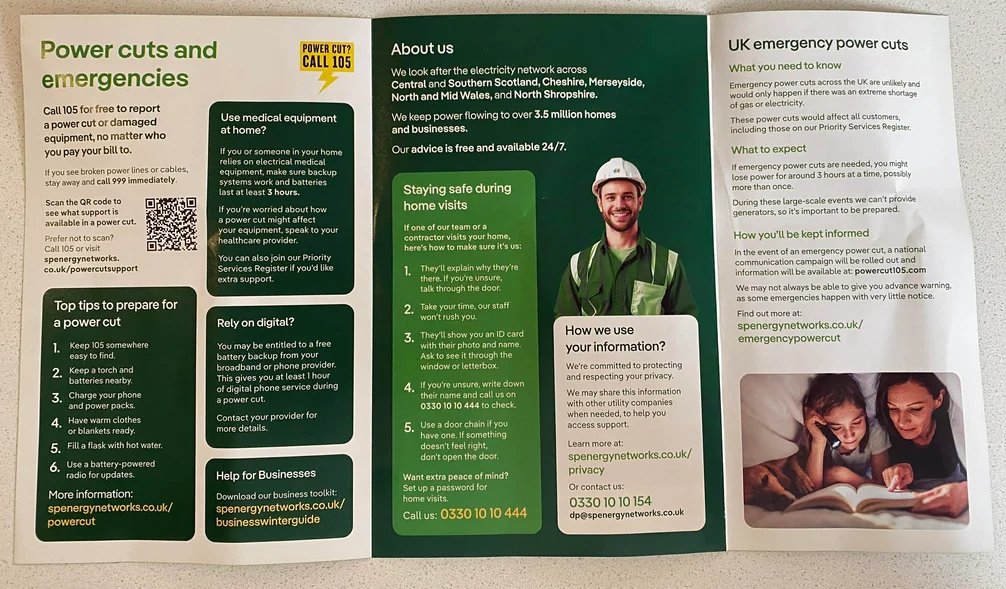
A few days earlier a green booklet called Preparing for a power cut had come through the door from SP Energy Networks, the company that runs the electricity cables round here. Sensible thing to keep. They went to look up the website in it.
The real address is spenergynetworks.co.uk. What got typed was the same thing without the s on the end of "networks". One letter.
The booklet doesn't make it easy. Open it up and there are five different web addresses to type, all starting spenergynetworks.co.uk followed by a slash and something else. Every one of them can be mistyped in exactly the same way.
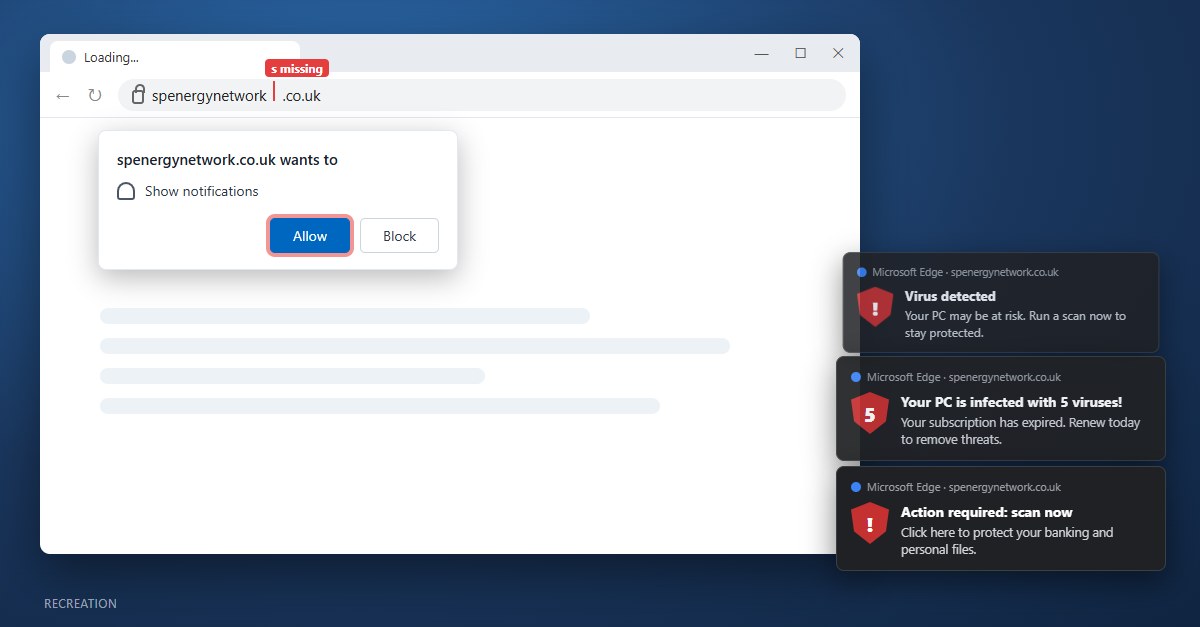
The misspelt address doesn't belong to SP Energy Networks. Someone has registered it because they know people will mistype the real one, and it's set up to do one thing: ask your browser for permission to send you notifications. A little box pops up near the address bar, it looks like every other "this site wants to..." box you've ever seen, and one click on Allow is all it takes.
Nothing got installed. Nothing got into Windows. But from then on, that website could put messages in the corner of their screen whenever it liked, even with Edge closed.
What they were seeing
The messages popped up in the bottom right, where real Windows alerts appear. They said things like the PC was infected and needed scanning now, with antivirus branding on them, and clicking one led to a page selling a McAfee subscription.
McAfee didn't send them. This is what the industry calls malvertising: dodgy adverts pushed through ad networks onto sites that look harmless, or onto lookalike addresses like this one that exist purely to catch typos. Whoever is behind it usually gets paid for every subscription sold through their link, so frightening people into buying one is the business model. The warnings themselves are made up. A website can't scan your computer and has no idea what's on it.
If you look closely at one of these, the small print gives it away. It says "Microsoft Edge" at the top and shows the website's address underneath. A real warning from your antivirus comes from Windows Security, not from your web browser.
Getting rid of them
This is the easy part. In Edge's settings there's a Notifications page under Site permissions that lists every site you've ever said yes to. The fake site was sitting in the Allow list. I removed it, and checked nothing else was hiding in there.
Then, after talking it through with them, I turned off "Ask before sending" on the same page. That stops any website from asking to send notifications in the first place. Plenty of people use site notifications for news or online shopping, so I wouldn't do this on everyone's computer. For this couple, though, notifications from websites did nothing useful and the request box was the thing that had caught them out. With it off, that box can't appear again.
It might not be Edge on your computer. Chrome, Firefox and Safari all have the same feature, so if you're getting these warnings, check every browser you have installed, including ones you rarely open. Not sure which one is sending them? The small print at the top of the warning names the browser.
Where to find notification settings in each browser
Microsoft Edge
Settings, then Privacy, search, and services, then Site permissions, then Notifications. Older versions of Edge put it under Cookies and site permissions instead. You can also paste edge://settings/privacy/sitePermissions/allPermissions/notifications into the address bar to go straight there. Find the site in the Allow list and use the three dots next to it to block or remove it. Turning off "Ask before sending (Recommended)" at the top stops websites asking at all.
Google Chrome
Settings, then Privacy and security, then Site settings, then Notifications. At the top, choose the default you want: you can stop sites asking altogether. If you can still get to the site that's sending them, click the View site information icon to the left of the address and set Notifications to Block.
Mozilla Firefox
Settings, then Privacy & Security, then scroll down to Permissions and click the Settings button next to Notifications. Set any site you don't want to Block in the Status drop-down, tick "Block new requests asking to allow notifications", then click Save Changes. You can also paste about:preferences#privacy into the address bar.
Safari on a Mac
Safari, then Settings, then the Websites tab, then Notifications. Set any site you don't recognise to Deny, or select it and click Remove. Untick "Allow websites to ask for permission to send notifications" and you won't be asked again. On older Macs, Settings is called Preferences.
Chrome on an Android phone
Tap More (the three dots), then Settings, then Site settings, then Notifications. When one of these notifications appears, you can also swipe down and tap Unsubscribe on it.
Windows itself
If you can't work out where they're coming from, go to Start, then Settings, then System, then Notifications. Under "Notifications from apps and other senders" every app allowed to pop up in the corner is listed, browsers included. Switching a browser off there silences all of its website notifications in one go, although it silences the useful ones too.
While I was there
The notifications were sorted inside ten minutes. The call-out includes an hour, so I spent the rest of it getting their computer running as healthily as it could.
Windows Update was brought fully up to date. Windows Security was running properly with real-time protection on, and a scan came back clean, which is what I expected given nothing had been installed. Disk Cleanup freed up 15GB, mostly old update files Windows hadn't got round to clearing. sfc /scannow found some damaged Windows system files and repaired them. The website didn't cause those. PCs pick that sort of thing up over years of updates and the odd bad shutdown. And a few programs that had been starting up with Windows for no reason were switched off, so it boots quicker.
By the time I left they had a computer that was quieter and quicker than the one they'd had a week ago, and they knew what had happened and why.
Check the address against the paper
Typing a web address from a letter or booklet is one of the easiest ways to end up somewhere you didn't mean to be, and scammers register the common typos of big names for exactly that reason. Energy companies, banks, the council, HMRC. If the address you've typed doesn't look exactly like the one on the paper, go back and check it letter by letter.
For a power cut specifically, you don't need a website at all. Ring 105 from any phone. It's free, it works across Great Britain, and it puts you through to whoever runs the electricity network in your area. The booklet's own first tip is to keep 105 somewhere easy to find. I'd go further and stick it on the fridge.
And if a box ever asks whether a website can send you notifications, the safe answer is Block unless you know exactly why you'd want them. I've written more about telling real virus warnings from fake ones if you want to see the other common types.
A safety net for typos
You can also stop a lot of these sites from loading at all, before anyone gets the chance to click Allow. A DNS filtering service sits between your computer and the internet and refuses to look up addresses it knows are dodgy. I use NextDNS myself and it's the one I recommend. It has a setting aimed squarely at this problem, typosquatting protection, which catches lookalike addresses of well-known sites. There's also an option to block domains registered in the last few weeks, where a lot of scam sites live. The free tier is plenty for light users like this couple.
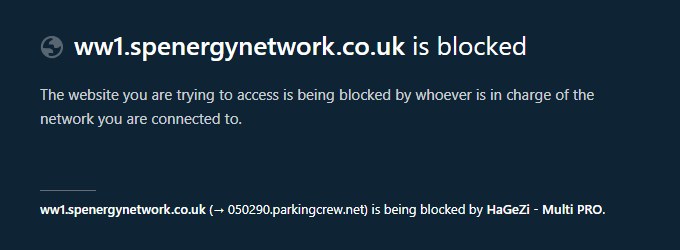
When I tried to have a look at the lookalike site myself afterwards, from home, it never loaded. NextDNS stopped it. The small print shows where it was trying to send me: ParkingCrew, a domain parking network that fills unused and lookalike addresses with adverts.
It isn't magic. A brand-new scam site can slip through until it gets reported, and it needs setting up on the router or on each device, which puts some people off. For someone who types addresses in from letters a lot, I think it's well worth having, and I can set it up while I'm there if you'd like it.
If your computer's showing warnings you're not sure about, anywhere around St Helens, get in touch before clicking anything. Most of the time it's something like this and quick to sort, and if it does turn out to be more serious, my virus removal service covers that too.

Mark has been fixing computers since the late '90s and went self-employed in 2008. Based in St Helens since 2013, he works evenings and weekends from his home in Laffak, doing friendly, affordable repairs for PCs, laptops, and Macs. See reviews on Google
Worried about a virus warning?
I'll tell you if it's real, get rid of it either way, and check the rest of the computer while I'm at it. Get in touch to book a time.
★★★★★"Very efficient and informative Mark was on time also"
— Les Chisnall, via Google