Dell Vostro 3510 Cracked Screen Replacement in Haresfinch, St Helens
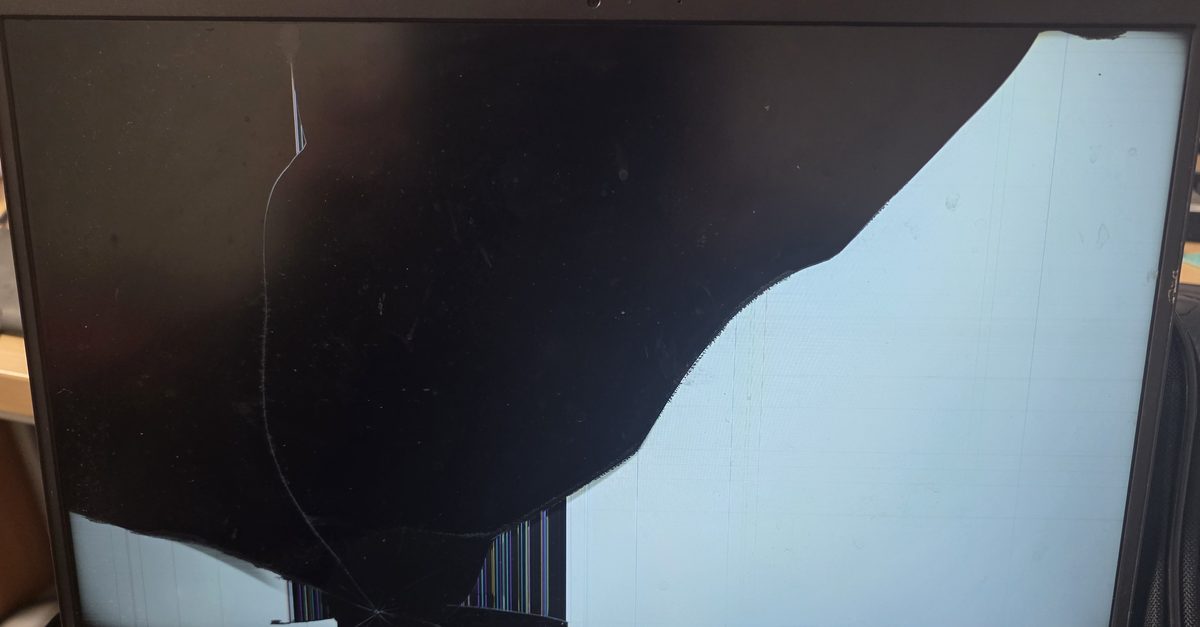
A cracked Dell laptop screen in Haresfinch
A lady in Haresfinch got in touch about her laptop, a Dell Vostro 3510. Someone had stood on it and cracked the screen.
You can see the damage in the photo above. The crack starts near the bottom, where the weight went on, and runs up the left side. Most of the screen has gone black, and there's a band of coloured vertical lines where the panel took the worst of it. The bits still lit up showed the laptop was running fine underneath. It was only the screen that was broken.
That's the usual story when a laptop gets stood on or sat on with the lid shut. The keyboard pushes into the back of the screen and the panel cracks. As long as the lid and hinges aren't bent, you just need a new screen.
Getting the right screen for a Vostro 3510
Dell sold the Vostro 3510 with more than one screen, so searching "Vostro 3510 screen" and buying the cheapest result is a gamble. I matched the panel to the one actually in the laptop, ordered it, and fitted it the next evening.
How the screen comes out on a Vostro 3510
On a lot of laptops you can unclip the plastic surround from the front of the lid and get at the screen without opening the base. The Vostro 3510 isn't like that. Dell's own service manual has you take the whole lid off the laptop first, so the job starts underneath.
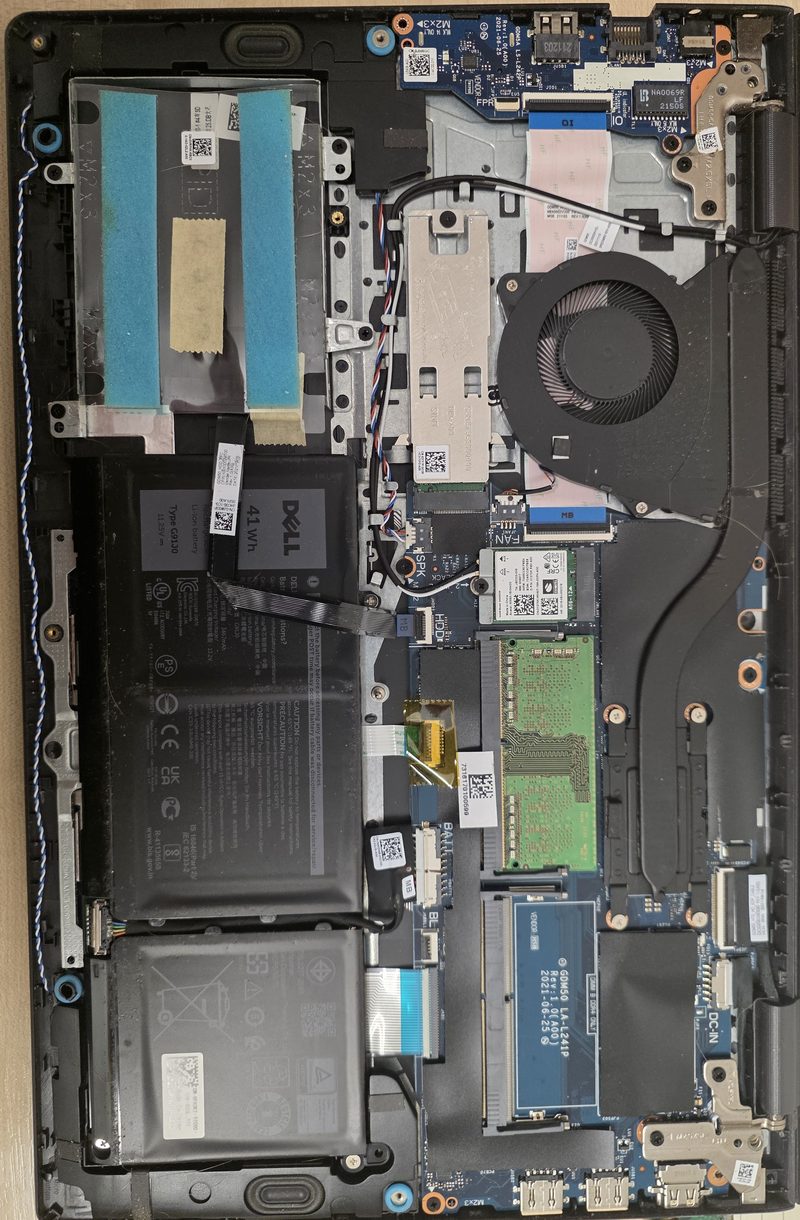
This is roughly how it went:
- Base cover off, and the battery disconnected so nothing has power while I'm working.
- Wifi card out. Its two aerial wires run up through the hinge into the lid, so they have to be free before the lid will come off. On this one it was easier to take the card out completely.
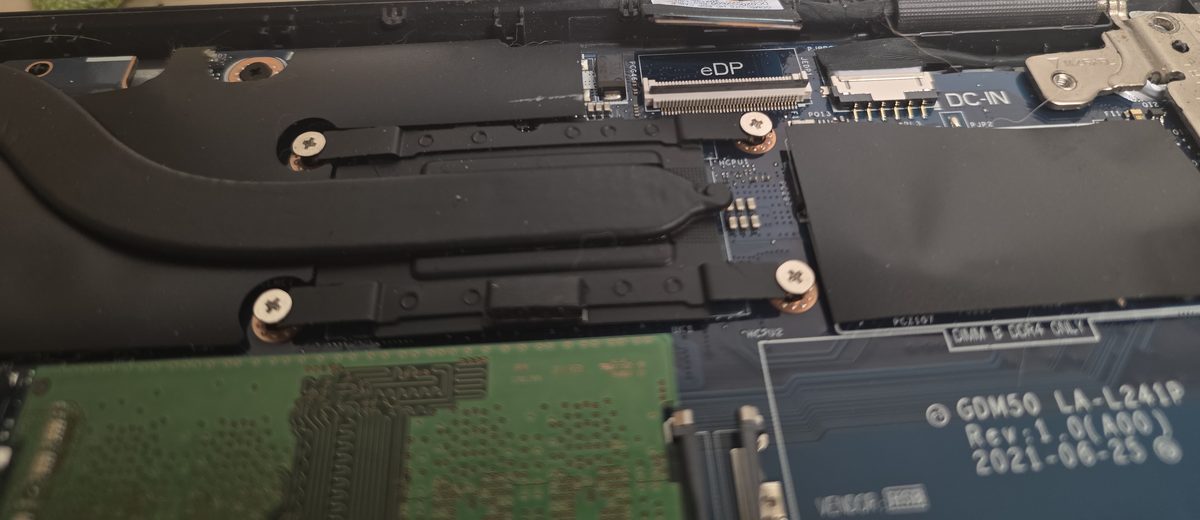
- Screen cable unplugged from the motherboard. It's on the connector marked eDP, next to the charging socket.
- Aerial wires and cables lifted out of the clips that route them round the inside.
- Six screws out of the two hinges, hinges folded back, and the base lifted away from the lid.
- The hinge covers off the bottom of the lid, then the plastic surround (Dell calls it the bezel). It's held on with adhesive, so it gets eased off slowly with a plastic tool and fingers. Lever it hard and it bends or snaps.
- The old panel prised up from the bottom corner, slid down to free the metal tabs at the top, and flipped forward onto its face.
- Tape peeled back and the cable unplugged from the back of the panel.
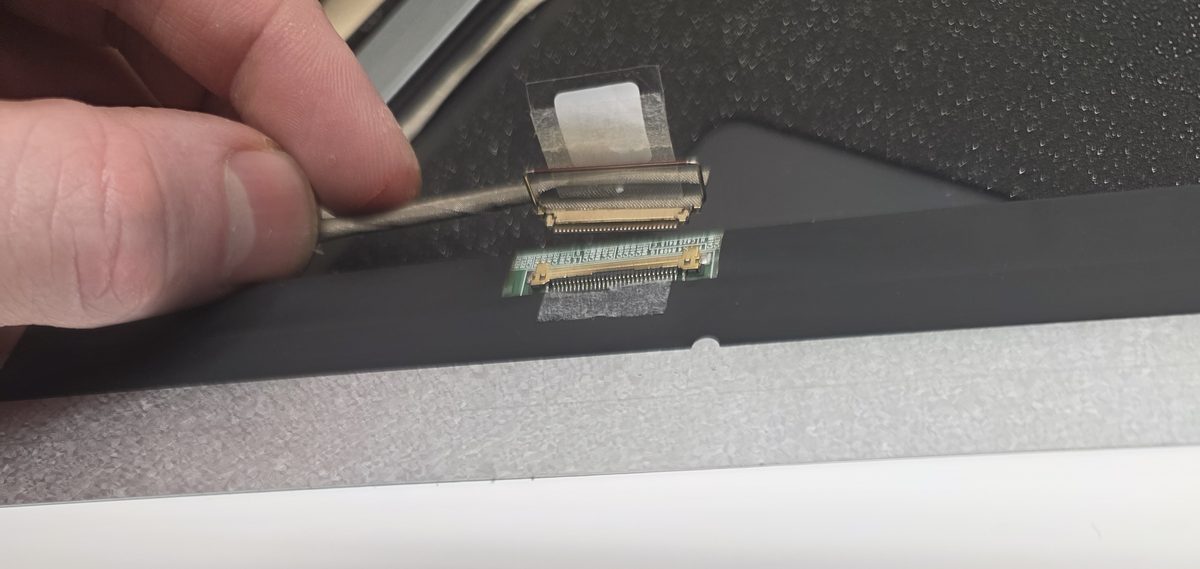
The new panel goes in the same way in reverse. Cable on and taped down, top edge slid into the slots, panel pressed into place, then the surround, hinge covers and the rest. The new screen came with fresh adhesive strips, which is handy because the old adhesive is never as sticky the second time.
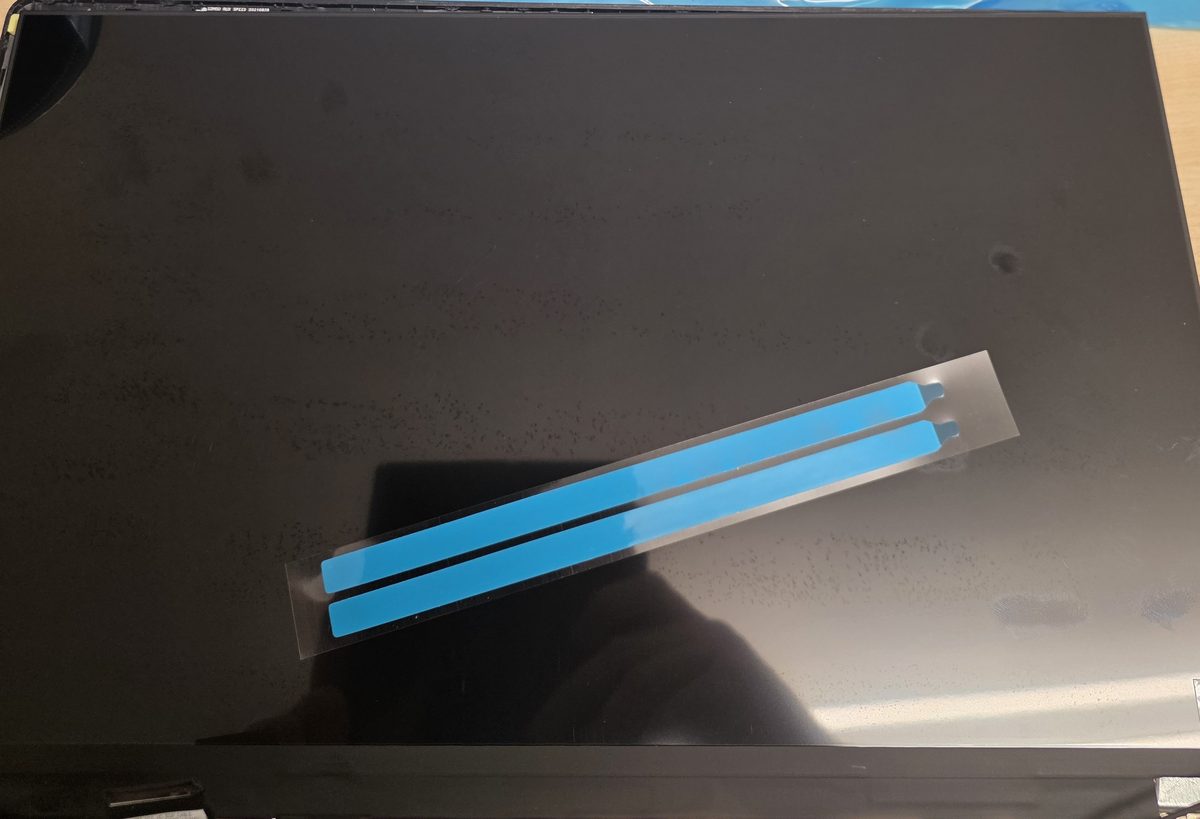
From taking the base off to seeing the Dell logo on the new screen took me about 40 minutes. Most of that is the lid coming off and going back on, not the screen itself.
Testing the new screen
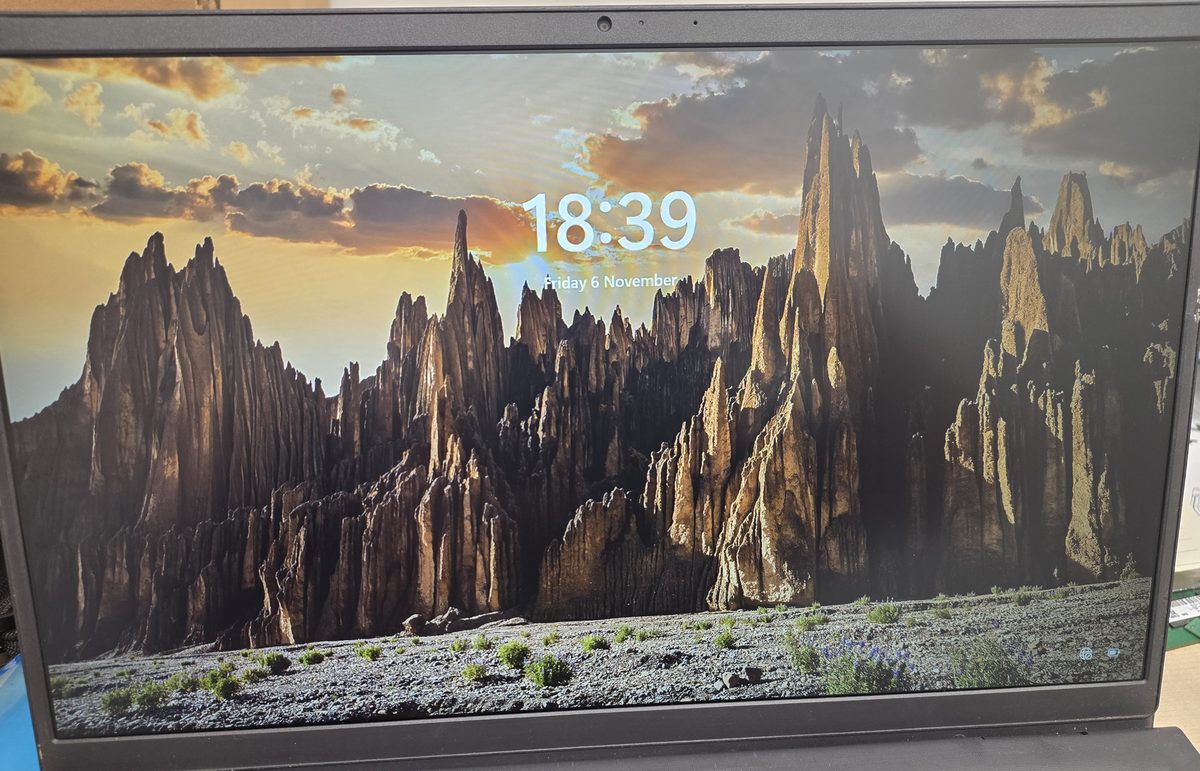
Before the base cover goes back on, I always power it up and check the new screen properly. I look for dead pixels, any patches of light bleeding in round the edges, and whether the picture flickers when the lid moves. Flicker when you open and close the lid usually means the cable is pinched or not seated, and you want to find that out before it's all screwed back together.
It came straight up on the Dell logo and booted into Windows. Everything was where she left it: files, desktop, all of it. A screen swap doesn't touch the hard drive, so there's no reason anything should be lost.
If you're thinking of doing it yourself
It's doable if you're careful. Buy the screen by the part number on the label on the back of your old one, or by your laptop's service tag, not just "Vostro 3510". Use plastic tools on the surround. Don't pull the screen cable out by the wires. And go gently with the hinges once the screws are out, because the lid is only hanging on the cables at that point.
Before you buy anything, plug the laptop into a TV or monitor with an HDMI cable. If you get a normal picture on the TV, the rest of the laptop is fine and a screen will fix it. If the screen isn't cracked but has gone black, it might not need a screen at all. I've covered that in laptop screen gone black.
If you're in Haresfinch, Moss Bank, Blackbrook or anywhere around St Helens and your laptop screen is cracked, send me the model number and I'll quote for the right panel. Have a look at my laptop screen and battery replacement page for how I work. Get in touch to book it in.

Mark has been fixing computers since the late '90s and went self-employed in 2008. Based in St Helens since 2013, he works evenings and weekends from his home in Laffak, doing friendly, affordable repairs for PCs, laptops, and Macs. See reviews on Google
Cracked laptop screen?
Send me the model number and I'll find the right screen for your laptop and give you a price. Message me to book a time to drop it off.
★★★★★"Can't recommend highly enough. Customer service is superb and he fixed my laptop when I thought it was ready for the bin."
— John Dearden, via Google