Hard Drive Failed? Don't Turn It On Again: What To Do Next
A bloke dropped a laptop off a few months back. His wife's. Eight years of family photos, her business accounts, a book she'd been writing since lockdown. It had started clicking two weeks earlier. He'd Googled it, downloaded three different recovery programs, run chkdsk twice, and watched YouTube videos about putting drives in freezers. By the time it reached me there wasn't enough of the drive left to image. Most of those photos are gone.
I think about that one a lot. Every repair person does. The worst part is that it was a perfectly recoverable drive when it first started misbehaving. The "fixing" is what destroyed the data. If yours has started making noises or throwing errors, read this before you do anything else.
Signs a Drive Is Failing
Drives very rarely die silently. The warning signs, in roughly the order they appear:
- Files disappear or get corrupted. Photos won't open, documents say "file is damaged", folders that were full yesterday are empty
- Windows suggests you "scan and fix" a drive every time you plug it in
- Slowdowns. Opening a folder takes 30 seconds when it used to be instant
- Clicking, grinding, or whirring noises coming from inside the PC (the "click of death")
- Blue screens mentioning
UNMOUNTABLE_BOOT_VOLUME,INACCESSIBLE_BOOT_DEVICE, orCRITICAL_PROCESS_DIED - Windows won't boot, or gets stuck on the spinning dots forever
- BIOS can't find the drive at all. It's just not there any more
If you're seeing any of these, stop working on the PC, stop saving things to the drive, and back up anything you can still get to (onto a different drive) as your first priority.
The Three Types of Failure
Not all failures are the same, and it matters because it determines what can be done about them.
1. Logical failure (best case)
The drive itself is fine, but the file system is corrupted, a partition table is damaged, or Windows has become confused. Often caused by unsafe shutdowns, a botched Windows update, or malware. This is the easiest to recover from, and in most cases 100% of the data can come back.
2. Mechanical failure (traditional hard drives only)
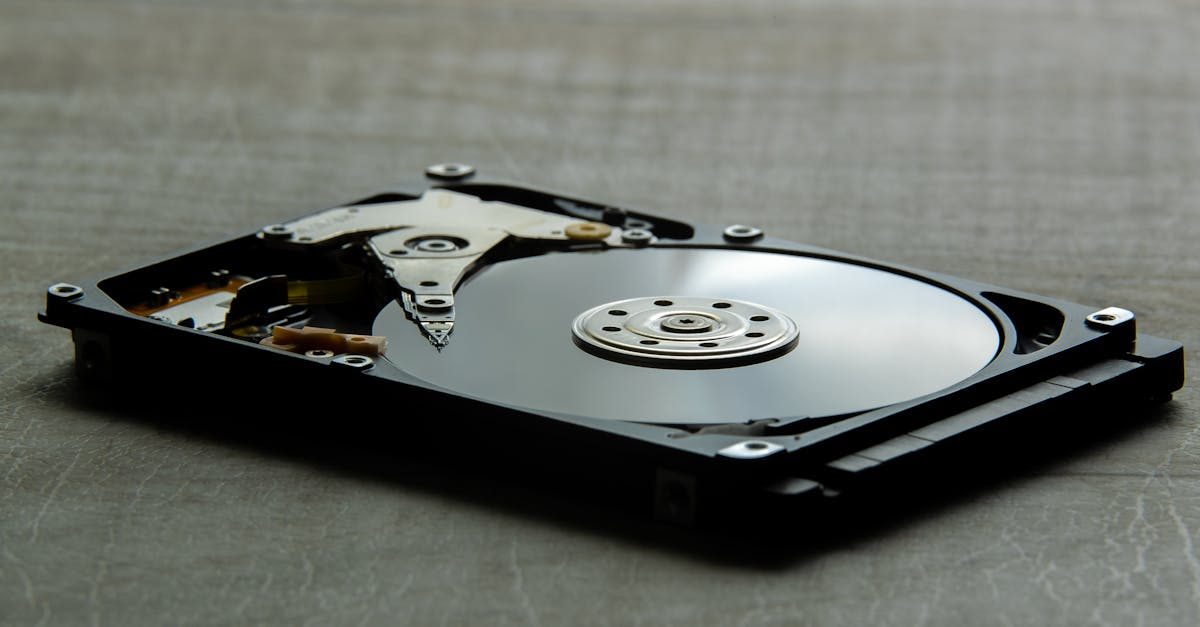
Spinning hard drives have moving parts: platters, a motor, a tiny head that floats a hair's width above the surface. When something mechanical goes, you'll often hear it: clicks, grinding, beeping. Mechanical failures are recoverable but usually need specialist equipment, sometimes a clean-room lab. SSDs don't have moving parts, so they don't fail this way.
3. Electronic / firmware failure
The circuit board on the drive dies, or the firmware inside it corrupts. Common on SSDs. Often presents as "the drive isn't detected at all". It's just invisible. Sometimes recoverable with a donor board or firmware tools, but it's specialist work.
What NOT to Do
Please don't do any of these
- Don't keep rebooting hoping it'll come back. Each boot attempt on a failing drive can cause more damage. If it didn't work the first time, power it off.
- Don't run chkdsk or "Scan and fix drive" on a drive you think is dying. Chkdsk rewrites the file system. If the drive is physically struggling, chkdsk finishes the job of wrecking it. It's made for a healthy drive with minor corruption, not a failing one.
- Don't install recovery software onto the same drive. Downloading EaseUS/Recuva/whatever onto your desktop overwrites the very free space where your deleted files were sitting, wiping out the thing you were trying to recover.
- Don't put a hard drive in the freezer. Yes, this is a real thing people do because of a forum post from 2009. It was never more than an emergency last-resort for a specific type of failure, and modern drives are ruined by the condensation when they warm back up.
- Don't open the drive up. Platters need a certified clean-room. A single speck of dust landing on them at full spin makes the data unrecoverable.
- Don't keep working off the failing drive. Don't "just finish this document first". Don't leave your PC on overnight doing a long scan. Every minute the drive is powered on is a minute it's dying faster.
What To Do Instead
In order of priority:
- Power the PC off. If it's a desktop, pull the plug. If it's a laptop, shut it down.
- Check whether you have a backup already. Cloud backup (OneDrive/Google Drive/iCloud), an external drive, a previous PC you kept, anything. If you've got a backup, the urgency drops dramatically.
- Work out what you'd actually lose. Photos? Tax documents? A novel you've been writing? This affects whether a £200 recovery job is worth it, or a £2,000 lab job, or just giving up and moving on.
- Get it looked at. A proper repair person (like me) can image the drive (that is, make a sector-by-sector copy onto a healthy drive) and then recover from the copy. The original drive never has to be written to again, which massively increases the chance of getting everything back.
The Prevention Bit (Sorry)
I know nobody wants to hear this after a drive has died. But the one reliable way to never have this conversation is to make sure your data is in more than one place, all the time. It doesn't have to be complicated. My guide on how to back up your PC covers a few free and cheap options.
Drives fail. All of them. Eventually. The question isn't if, it's whether your stuff is safe when it happens.
If you're curious about what else goes wrong with PCs (and how to spot it early), I wrote about the most common PC problems I see. And if you're local and need a drive looked at, my data recovery page covers the kinds of drives and situations I can help with.

Mark has been fixing computers since the late '90s and went self-employed in 2008. Based in St Helens since 2013, he works evenings and weekends from his home in Laffak, doing friendly, affordable repairs for PCs, laptops, and Macs. See reviews on Google
Drive acting up? Don't keep using it.
Bring the PC in (or I'll come to you) and I'll image the drive safely, then recover what I can. The sooner it's looked at, the more comes back.
★★★★★"This company saved my day, not only did my pc break but I thought I'd lost all the contents too! They didn't just manage to fix it they managed to retrieve all the data too, a lot of which was very important to me, I cannot thank them enough!"
— William Gracey, via Google