The Most Common Computer Problems I Fix in St Helens
I've been repairing computers in St Helens since 2008. In that time I've seen just about everything, from PCs that won't turn on to laptops full of dust, from Windows updates that break everything to antivirus software that causes more problems than it solves.
These are the most common problems that land on my desk. Some you can fix yourself. Some need a professional. I'll be honest about which is which.
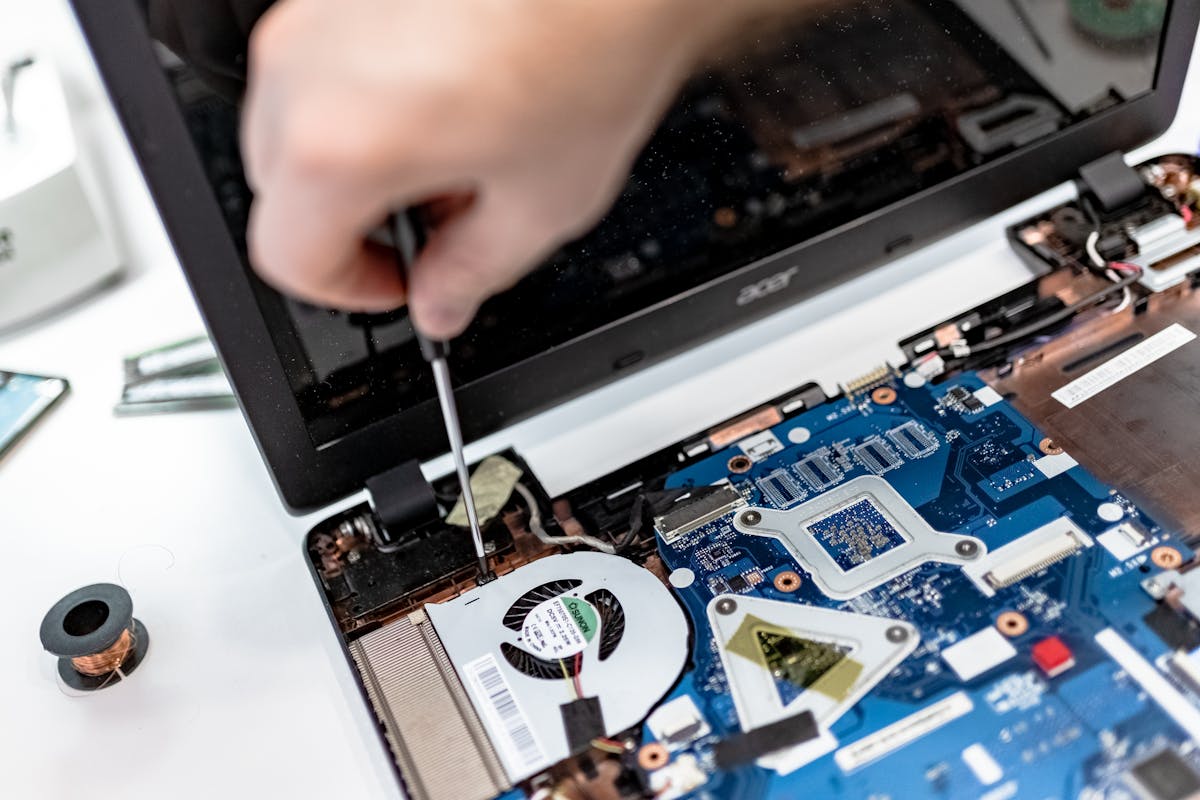
Hardware Problems
These are the physical faults: things you can often hear, see, or smell going wrong.
Failed Power Supplies
This is one of the most common desktop repairs I do. The PC simply won't turn on. You press the power button and nothing happens. No fans, no lights, nothing. Or it turns on for a second and immediately shuts off again.
The power supply (PSU) is the metal box inside your desktop that converts mains electricity into the different voltages your components need. They wear out over time, especially cheap ones that come bundled with budget cases. A failing PSU can also cause random shutdowns, restarts, or blue screens, symptoms that often get blamed on other things first.
The fix is straightforward: swap it for a decent replacement. It's one of the cheaper repairs for a desktop PC, and a good quality PSU will last years.
Bad RAM or Unseated RAM
RAM problems are sneaky because the symptoms look like software issues. You'll get random blue screens, programs crashing for no reason, or the PC freezing completely. Sometimes it won't boot at all, just beeps at you or shows a black screen.
Faulty RAM is when the memory stick itself has gone bad. It happens, especially after power surges or on older machines. The fix is to test each stick individually, find the bad one, and replace it.
Unseated RAM is even more common and much simpler. The memory stick has worked itself slightly loose in its slot. Maybe the PC got knocked, moved, or it was never quite clicked in properly. I see this a lot on machines that have been transported. The fix takes about 30 seconds: pop the side panel off, press the RAM sticks firmly back into their slots until they click, done. Free fix.
Dust-Clogged Heatsinks
This is the silent killer of PCs and laptops. Over time, dust builds up on the heatsink fins and fans inside your machine. The airflow gets restricted, the CPU can't cool itself properly, and the computer starts overheating.
The symptoms? The fans run loud constantly, like a jet engine on your desk. The PC gets hot to the touch. It slows down under load because the processor is throttling itself to avoid damage. In extreme cases it just shuts off without warning to protect itself.
Laptops are worse than desktops for this because the cooling channels are much smaller and clog faster. I've pulled solid felt-like blankets of dust out of laptop heatsinks that had completely blocked all airflow. The owners thought they needed a new laptop, when they actually just needed a £30 clean and repaste.
For desktops, a can of compressed air and 10 minutes is usually enough to sort it. For laptops, it's a bit more involved because you need to take the bottom panel off (and sometimes more) to get at the fans and heatsink properly.
DIY PCs Built Badly
I get a lot of these in St Helens. Someone's built their own PC (or had a mate build it) and it's not working right. Fair play for having a go, but there are some common mistakes I see over and over:
- CPU cooler not mounted properly: not enough thermal paste, or the cooler isn't tightened evenly. The PC works but runs hot and throttles
- Front panel connectors in the wrong pins: the power button doesn't work, or the HDD activity light is on constantly
- RAM in the wrong slots: most motherboards want RAM in slots 2 and 4 (not 1 and 2) for dual-channel. In the wrong slots it still works, but you're leaving performance on the table
- No airflow planning: all fans blowing the same direction, or cables blocking the airflow path. The case fills with hot air and everything throttles
- Cheap PSU with not enough wattage: the PC crashes under load because the power supply can't keep up with the graphics card
None of these are expensive to fix. It's usually just a case of opening it up and putting things right. If you've built a PC and something doesn't seem right, it's worth getting it checked before a small issue becomes an expensive one.
Misconfigured BIOS
The BIOS (or UEFI on modern machines) is the firmware that runs before Windows starts. Most people never touch it, but those who do can accidentally change settings that cause problems:
- Boot order wrong: the PC tries to boot from a USB drive or network instead of the hard drive. You get a "no bootable device" error even though Windows is installed
- XMP/DOCP not enabled: your RAM runs at a slower speed than it's rated for. The PC works fine but you're not getting the performance you paid for
- Secure Boot disabled: some Windows features and updates need this enabled. Turning it off can cause update failures or security warnings
- SATA mode changed: switching between AHCI and IDE/RAID after Windows is installed causes an immediate blue screen on boot. This one panics people, but it's a quick fix
BIOS issues usually look terrifying (black screens, error messages, PCs that won't boot) but they're almost always fixable without any parts or expense. It's just knowing which setting to change.
Failing Hard Drives
If your PC has a traditional spinning hard drive (most machines over 3–4 years old do), it will eventually fail. It's mechanical: a spinning disc with a moving read/write head, like a tiny record player. Moving parts wear out.
The warning signs: clicking or grinding noises from inside the PC, files that take forever to open or sometimes won't open at all, folders that randomly disappear, and a system that gets slower over time for no obvious reason.
If you're hearing clicking, back up your important files immediately. Don't wait. A clicking drive can fail completely at any point. Not sure how? I've got a separate guide on backing up your PC properly.
The best upgrade for any PC with a spinning hard drive is replacing it with an SSD. The speed difference is dramatic, and SSDs have no moving parts so they're far more reliable. More on that in my slow Windows 11 PC guide.
Swollen Laptop Batteries
This is one that people often don't notice until it's quite advanced. Laptop batteries can swell over time: the cells inside expand, and the battery physically puffs up. You might notice:
- The trackpad becomes hard to click or stops responding
- The laptop doesn't sit flat on a desk anymore, it rocks
- The bottom panel is bulging or has a gap that wasn't there before
- The keyboard feels raised or uneven
A swollen battery is a safety issue. In rare cases they can puncture and cause a fire. If you suspect yours is swollen, stop using the laptop and get it looked at. The battery needs replacing, and it's not something you should try to force back into shape. Check out my post on how to check your laptop battery health if you're not sure about the state of yours.
Loose or Damaged Charging Ports
Another common laptop repair. The charging port gets knocked, bent, or worn out from daily plugging and unplugging. The symptoms are obvious: the laptop only charges at a certain angle, the connection is intermittent, or it stops charging altogether.
On some laptops the charging port is soldered directly to the motherboard, which makes it a trickier repair. On others it's a separate part connected by a cable, which is much easier to replace. Either way, don't ignore it. A dodgy connection can damage the motherboard over time.
Software Problems
These are the problems where the hardware is fine but something in Windows (or the software running on it) has gone wrong.
Windows Update Failures
Windows Update breaking things is so common it's almost a cliché, but it's genuinely one of my most frequent call-outs in St Helens. An update installs, the PC restarts, and something doesn't work anymore. Or worse, the update fails halfway through and the PC gets stuck in a boot loop.
The usual ways it goes wrong:
- Update stuck at a percentage: "Working on updates, 35% complete" for two hours. Usually just needs patience, but sometimes it's genuinely stuck and needs manual intervention
- Blue screen after update: a driver incompatibility caused by the update. Rolling back the update usually fixes it
- Printer stops working after update: Microsoft has broken printer drivers with updates multiple times. Reinstalling the printer driver usually sorts it
- Wi-Fi disappears after update: the network adapter driver gets replaced with a generic one that doesn't work properly
Missing or Broken Drivers
Drivers are the software that lets Windows communicate with your hardware: graphics card, sound card, Wi-Fi adapter, printer, and so on. When a driver is missing, outdated, or corrupted, the hardware either doesn't work at all or behaves strangely.
Common symptoms: no sound, no Wi-Fi, screen resolution stuck at a low setting, printer not recognised, Bluetooth not working. Sometimes Device Manager shows a yellow warning triangle next to the affected device.
This often happens after a Windows reinstall or a major update that replaces working drivers with generic ones. The fix is usually downloading the correct driver from the manufacturer's website, but you need to know exactly which hardware you have, which isn't always obvious.
Clashing Antivirus Software
This is one of the most common causes of a slow, unstable PC that I see, and people usually don't realise it's happening. They've installed one antivirus program, then another one (maybe a free trial that came with something else), and now they've got two or even three antivirus programs all running at the same time.
The problem? They fight each other. Each one sees the other as suspicious activity and tries to scan it. They compete for system resources. They intercept the same files at the same time and cause conflicts. The result is a PC that's painfully slow, throws random errors, and is actually less secure than if you'd just left Windows Defender on its own.
Pick one and uninstall the rest. For most people, Windows Defender (built into Windows 10 and 11) is genuinely all you need. It's free, it's always running, and it's good. I've written separately about how to tell real virus warnings from fake ones if you're not sure what to trust.
Bloatware
Almost every new PC from HP, Dell, Lenovo, Acer, and others comes loaded with software you didn't ask for and don't need. Trials of McAfee or Norton, manufacturer "helper" apps, third-party offers, duplicate media players, cloud storage apps you'll never use.
Each one takes up disk space, adds itself to your startup list, and runs in the background chewing through memory and CPU. A brand new PC that feels slow out of the box is almost always a bloatware problem, not a hardware problem.
Go to Settings → Apps ��� Installed apps and uninstall everything you don't recognise or don't use. It's usually one of the first things I do on any new machine. My slow PC guide covers this in more detail.
Browser Hijackers and Dodgy Extensions
Your homepage has changed to something you've never heard of. Your searches go through a weird search engine. There are toolbars across the top of your browser that you didn't install. Pop-up ads appear on websites that shouldn't have them.
This is usually caused by browser extensions that got installed without you realising, bundled with a free program you downloaded, or added by clicking "Allow" on a deceptive popup. They're not always detected by antivirus software because they technically run inside your browser, not as standalone programs.
Open your browser's extension/add-on settings and remove anything you don't recognise. If that doesn't clear it, reset the browser to default settings. In stubborn cases, the hijacker has also changed Windows registry entries and you need to dig deeper.
Full C: Drive
When your main drive fills up, everything suffers. Windows needs free space to function: for virtual memory, temp files, updates, and general operation. Once you're above 90% full, you'll notice the PC grinding to a halt, updates failing, and programs crashing.
The usual culprits are old Windows update files, a packed Downloads folder, massive Recycle Bin, and application caches (Teams and Slack are particularly bad for quietly eating gigabytes). Running Disk Cleanup as administrator can often reclaim 10–30GB of space from system files alone. I walk through exactly how in my slow PC guide.
"My Printer Won't Print"
The universal complaint. Printers are the one piece of technology that seems to actively resist working properly. The most common causes I see in St Helens:
- Driver conflict after a Windows update: Microsoft pushes a generic driver that doesn't work with your specific printer model
- Print queue stuck: one failed print job blocks everything behind it. Clearing the print queue fixes it instantly
- HP's software suite: HP especially installs a massive software package that fights with Windows' built-in print system. Often the fix is uninstalling all of HP's software and just using the basic Windows driver
- Wi-Fi printer lost its connection: the printer's IP address changed (common after a router restart) and the PC can no longer find it
- "Offline" status: the printer shows as offline even though it's turned on and connected. Usually a setting issue or a stale port configuration
Printers are one of those things where the fix is usually quick once you know what to look for, but incredibly frustrating if you don't. If you've been fighting with your printer for more than 20 minutes, it's probably quicker to get someone to look at it.
The One Thing All These Have in Common
Most of these problems are fixable, and most are cheaper to fix than people expect. A lot of the PCs I see in St Helens that people think are "broken" or "need replacing" actually just need a specific issue sorting out. A new power supply. A clean-out. A driver reinstall. A bloatware removal.
If something doesn't seem right with your PC, it's always worth getting it looked at before assuming the worst. More often than not, it's something straightforward.

Mark has been fixing computers since the late '90s and went self-employed in 2008. Based in St Helens since 2013, he works evenings and weekends from his home in Laffak — friendly, affordable repairs for PCs, laptops, and Macs. See reviews on Google
Recognise any of these?
If you're in St Helens or the surrounding areas and your PC is playing up, whether it's a hardware fault, a software nightmare, or you're just not sure what's wrong, get in touch. I'll diagnose it honestly and fix it properly.
★★★★★"Great fast service..I will use him again."
— raymond axon, via Google