Is Your Laptop Battery Dying? How to Check Battery Health
Laptop batteries don't last forever. After a couple of years of daily use, they start to wear out. That's just how lithium-ion batteries work. The question is: how do you know when yours is on the way out, and how bad is it?
The good news is you can check your battery's actual health using free tools already built into Windows and Mac. No software to download.
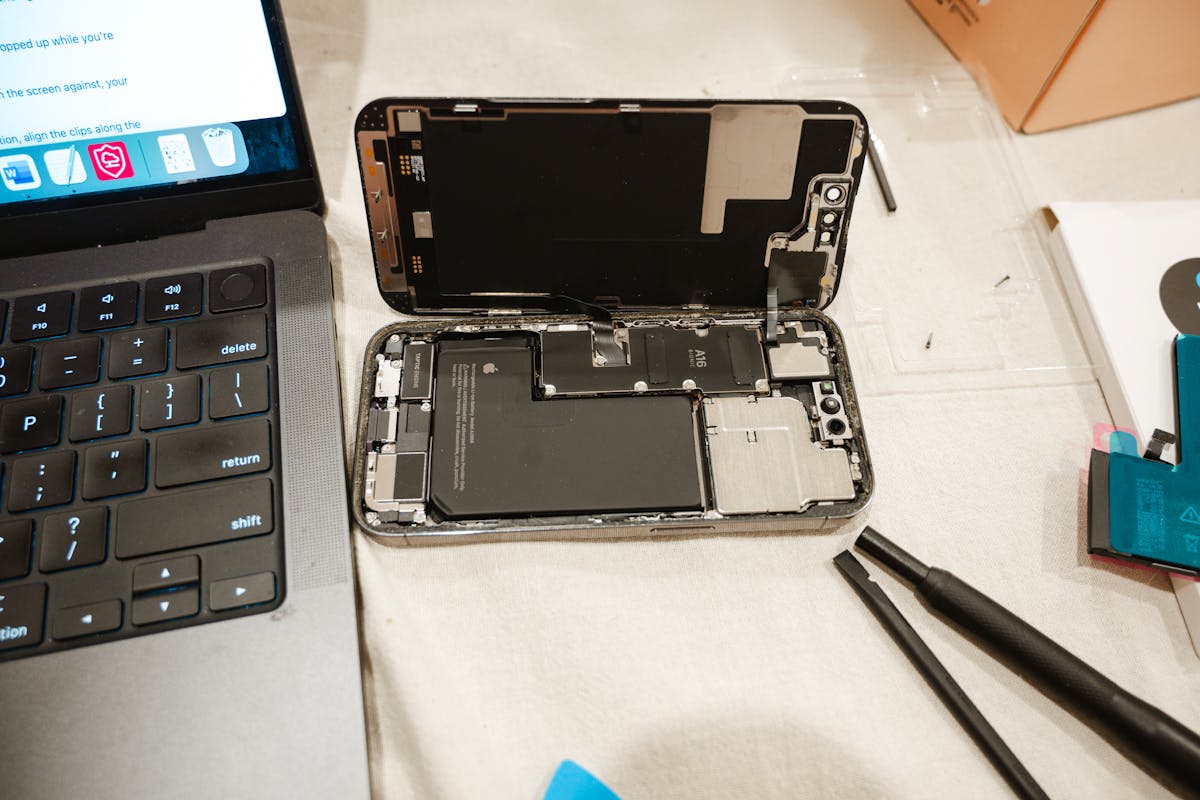
Signs Your Laptop Battery Is Dying
Some of these are obvious, some less so. If you're seeing more than one of these, your battery is probably past its best:
- It doesn't last as long as it used to. The most obvious one. If your laptop used to last 6 hours and now dies after 2, the battery has lost a big chunk of its capacity.
- It dies suddenly. Shows 30% then just switches off without warning. This happens when the battery can't accurately report how much charge it has left.
- It won't charge past a certain point. Stuck at 80% or 95% and won't go higher, even after hours plugged in.
- The laptop only works plugged in. Unplug it and it dies immediately, or won't turn on at all on battery.
- It's physically swelling. If your trackpad feels raised, the bottom of the laptop is bulging, or the case doesn't sit flat anymore, stop using it and get it looked at. A swollen battery is a safety issue.
- The laptop runs slower on battery. Some laptops throttle the CPU when the battery can't deliver enough power, making everything feel sluggish unplugged.
- Windows warns you. If you see a red X on the battery icon or a message saying "consider replacing your battery", take it seriously.
What Causes Battery Wear?
Every battery has a limited number of charge cycles. A cycle is one full discharge and recharge, but it doesn't have to happen all at once. Using 50% today and 50% tomorrow counts as one cycle.
Most laptop batteries are designed to keep about 80% of their original capacity after 300–1000 cycles depending on the manufacturer. After that, capacity drops off more noticeably.
Things that speed up battery wear:
- Heat. Batteries hate heat. Gaming on a laptop on a bed or cushion (blocking the vents) is one of the worst things you can do.
- Keeping it at 100% all the time. Leaving it permanently plugged in with a full charge stresses the battery. Modern laptops are better at managing this, but it's still not ideal.
- Letting it drain to 0% regularly. Deep discharges are hard on lithium-ion batteries. Try to plug in before it gets below 20%.
How to Check Battery Health on Windows
Windows has a brilliant built-in tool that most people don't know about. It generates a detailed battery health report with no extra software needed.
Step 1: Open Command Prompt
Press the Windows key, type cmd, then right-click Command Prompt and choose Run as administrator.
Step 2: Run the battery report command
Type this and press Enter:
You'll see a message saying the report has been saved, usually to C:\Users\YourName\battery-report.html.
Step 3: Open the report
Open File Explorer, navigate to that path, and double-click battery-report.html. It opens in your browser.
Step 4: Read the important bits
Scroll down to "Installed batteries" and look for two numbers:
- Design Capacity: what the battery could hold when it was new
- Full Charge Capacity: what it can actually hold now
For example, if your design capacity is 50,000 mWh and your full charge capacity is 35,000 mWh, your battery is at about 70% health. That's getting towards replacement territory.
The report also has a "Battery capacity history" section that shows how the full charge capacity has dropped over time, which is useful for seeing how fast it's declining.
How to Check Battery Health on Mac
Apple makes this a bit easier. There are two ways to check.
The quick way: System Settings
- Click the Apple menu (top left) and choose System Settings
- Click Battery in the sidebar
- Look for Battery Health, then click the info (i) button next to it
You'll see a status:
- Normal: battery is healthy
- Service Recommended: it's worn out and Apple suggests getting it looked at
The detailed way: System Information
For the full picture including your cycle count:
- Hold Option and click the Apple menu
- Choose System Information
- Click Power in the left sidebar under Hardware
Here you'll see:
- Cycle Count: how many charge cycles the battery has been through
- Condition: Normal or Service Recommended
- Maximum Capacity: percentage of original capacity remaining
So Your Battery Is Worn Out. Now What?
If your battery health is below 70–80%, you've got a few options:
- Replace the battery. On most laptops this is a quick job and much cheaper than buying a new laptop. Even on MacBooks where it's glued in, it's still a routine repair.
- Use it plugged in. If you mostly use your laptop at a desk, a worn battery might not bother you day-to-day. Just be aware that if it's swelling, it needs replacing regardless.
- Adjust your habits. Keep brightness down, close unused apps, and use battery saver mode to squeeze more life out of what's left.
If your battery's given up entirely or is starting to swell, I handle laptop repair in St Helens and can fit a fresh one for most makes and models, usually same-day.

Mark has been fixing computers since the late '90s and went self-employed in 2008. Based in St Helens since 2013, he works evenings and weekends from his home in Laffak, doing friendly, affordable repairs for PCs, laptops, and Macs. See reviews on Google
Battery on its last legs?
If you're in St Helens or the surrounding areas, I replace laptop batteries for most makes and models, both Windows and Mac. Drop me a message and I'll let you know what it'll cost for yours.
★★★★★"Mark is a great guy very quick to resolve our issue. We had the laptop back on the same day. Unbelievable service. Highly recommended."
— Mike Smith, via Google