Printer Won't Connect? Here's How to Fix It
A woman rang me on a Wednesday morning in a state. She had a job interview confirmation letter she needed to print, her appointment was in two hours, and the printer had decided that morning was the perfect time to stop working. The printer was on. The laptop was on. Windows said the printer was "offline". It wasn't offline. It was sat three feet away making the little ready light flash green.
Twenty minutes on the phone and it was sorted. But it didn't have to be that stressful. Most printer problems come down to the same handful of causes, and once you know them, they're not complicated.
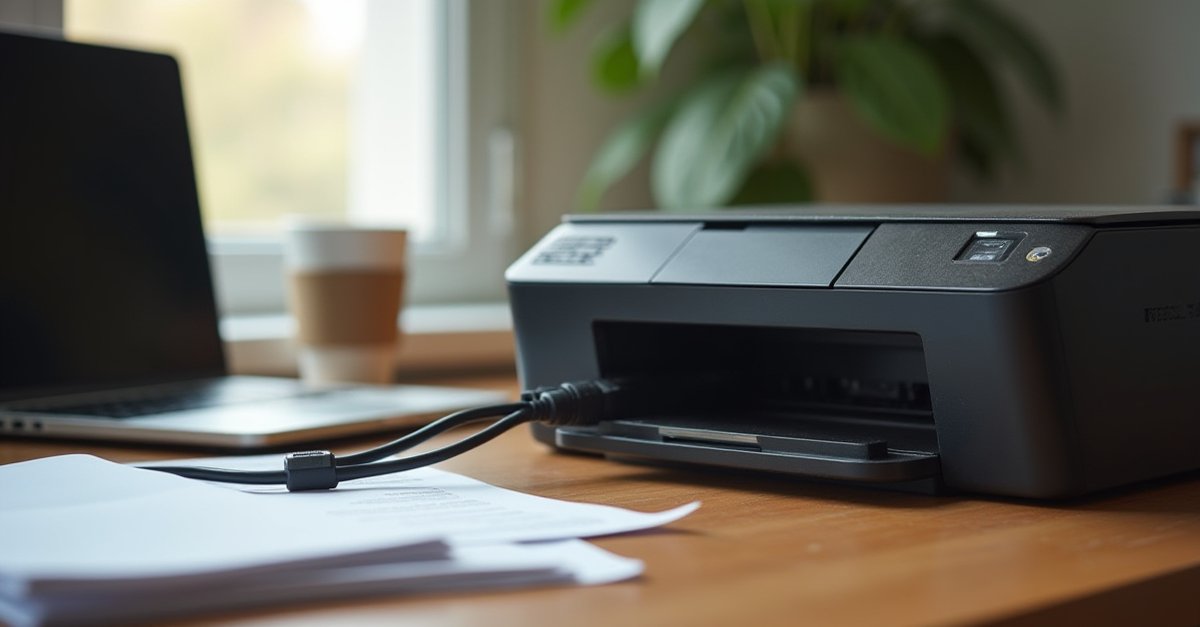
The "Offline" status that isn't real
Windows marks printers as offline for all sorts of reasons: a failed print job, a brief Wi-Fi dropout, restarting the PC in the wrong order. The printer itself is fine; Windows has just got confused and won't send anything to it.
The fix: open Settings → Bluetooth & devices → Printers & scanners. Click on your printer, then click Open print queue. In the small queue window that opens, click the Printer menu at the top left. If "Use Printer Offline" has a tick next to it, click it to untick it. That should be all it takes.
While you're in Printers & scanners, there's another setting worth checking: "Let Windows manage my default printer." When this is turned on, Windows automatically changes your default printer to whichever one you used most recently, which means it can swap to a PDF printer or a printer on someone else's network, and suddenly your actual printer isn't the default anymore. Turn this off and set your printer as default manually.
The stuck print queue
This is the most common reason a printer simply won't print anything. A job got stuck (maybe the PC restarted mid-print, maybe there was a driver error) and now it's sitting at the front of the queue blocking everything behind it. You can't delete it through the normal queue window because Windows holds a lock on it.
Here's the proper fix. Press Win + R, type services.msc and press Enter. Find Print Spooler in the list, right-click it, and click Stop. Now open File Explorer and navigate to C:\Windows\System32\spool\PRINTERS\ and delete everything inside that folder, but leave the folder itself. Then go back to services.msc, find Print Spooler again, and click Start. Try printing now.
That clears whatever was stuck. Nine times out of ten, this is what fixes it.
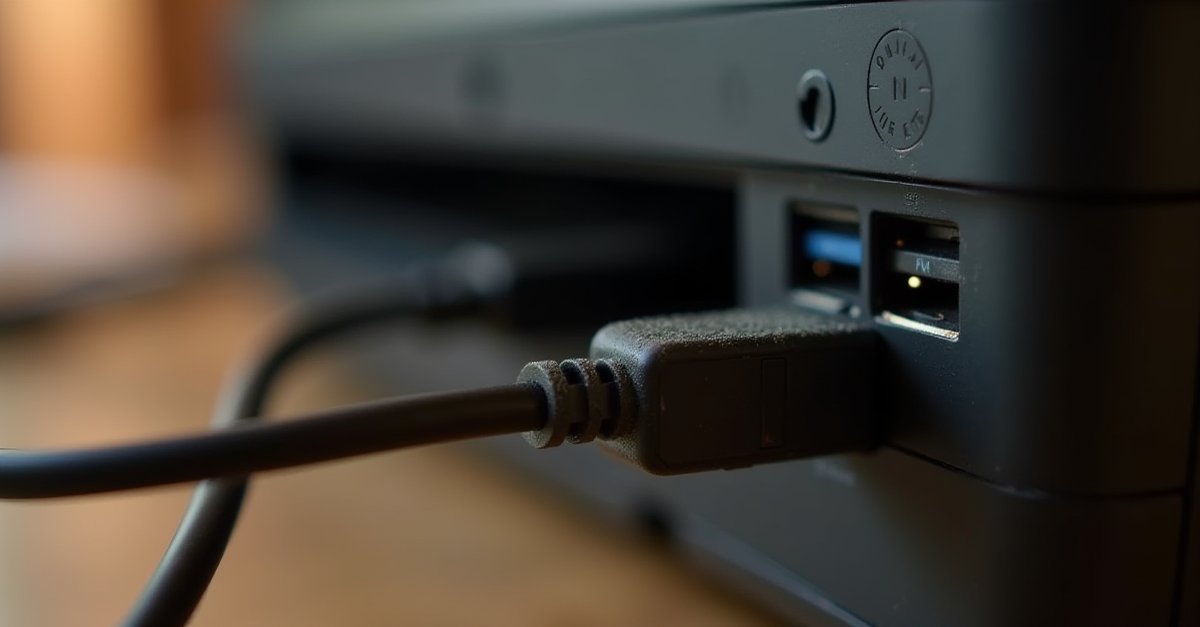
USB printer not being detected
USB printers use a square-ended connector called USB-B, the chunky square plug that goes into the printer. These cables go bad more than people expect, especially on printers that get moved around or where the cable gets unplugged and replugged repeatedly. The connector can develop a loose contact that works one day and not the next.
Try plugging it into a different USB port on the laptop first. Then try a different cable. A replacement USB-B cable is £3–5 and it fixes the problem about 20% of the time when a USB printer stops being detected. Worth ruling out before anything else.
Wi-Fi printer keeps disconnecting or won't be found
Modern home routers broadcast on two frequencies: 2.4GHz and 5GHz. Many routers give these separate network names (SSIDs), something like "BT-Home-2.4" and "BT-Home-5G". Most home printers only support 2.4GHz. If your laptop is connected to the 5GHz network and your printer is on 2.4GHz, they're on different networks even though they both have internet. Windows can't find the printer.
The fix: when you're setting up or re-adding a Wi-Fi printer, temporarily connect your laptop to the same 2.4GHz network as the printer. Add the printer in that state. After that, Windows should find it even when you're back on 5GHz, because it now knows the printer's IP address directly.
If the printer keeps disappearing from Windows after you've added it, the problem is usually that the printer's IP address changes every time it reconnects to the router (DHCP reassignment). The long-term fix is to log into your router admin page, find the printer by its MAC address in the connected devices list, and set it a reserved IP. Then remove and re-add the printer in Windows using that fixed IP: Settings → Printers & scanners → Add a printer or scanner → click "The printer that I want isn't listed" → choose "Add a printer using a TCP/IP address or hostname" and type in the IP.
This sounds involved but it's a five-minute job and it stops the problem coming back.
Try the manufacturer's own tool before anything drastic
Most of the big printer brands have a free troubleshooting utility on their support site, and they're genuinely good. Better than messing about in Windows settings for half an hour. You run the tool, it pokes the printer, checks the spooler, fixes the driver and the port settings, and quite often the printer just starts working again. Worth trying before you uninstall anything.
Here's what to look for by brand:
- HP: HP Print and Scan Doctor. Free download from
hp.com/go/tools. Diagnoses connection problems, driver issues, and stuck queues in one go. Probably the best of the bunch. - Epson: Epson Software Updater for keeping drivers fresh, and the Epson Connect Printer Setup tool if you're sorting Wi-Fi or email-to-print.
- Canon: Canon IJ Network Tool, which handles Wi-Fi setup and reconnection for Canon Wi-Fi printers.
- Brother: the Brother Printer Install Tool, or iPrint&Scan for ongoing connection and scanning issues.
If you can't remember the exact tool name, just go to the manufacturer's support page, type your printer's model number in (it's on a sticker on the printer, usually on the back or underneath), and look in the Software, Utilities or Downloads section. The diagnostic tool will be there alongside the driver.
While you're on that page, grab the manufacturer's own driver too. The driver Windows installs automatically is a generic one. It'll print, but it often misses the full software stack that handles scanning, ink levels, Wi-Fi config and so on. When connectivity is the problem, that missing software is frequently the reason. Install the proper one from HP, Canon, Epson or Brother directly and a lot of these problems disappear.
Driver clean reinstall
If the manufacturer's tool didn't sort it, the next step is a clean wipe. Open Device Manager (right-click Start → Device Manager), find your printer in the list, right-click it, and choose Uninstall device. Tick the box that says "Delete the driver software for this device" before clicking Uninstall. Restart the PC.
Then go back to the manufacturer's website and download the latest driver directly. Don't use Windows Update's version; it's the same stripped-down generic driver mentioned above, and it sometimes doesn't work as well. Run the installer from the manufacturer, let it set everything up fresh.
If none of this works
There are cases where it genuinely is the hardware: a dead wireless card inside the printer, a corroded USB port, or a printer that's just reached the end of its usable life. Inkjets in particular have a reputation for developing permanent head clogs or circuit faults after a few years of light use. If you've been through all of the above and it's still not printing, it might be time to take stock of whether a repair is worth it versus a new printer.
If you'd rather have someone take a look and sort it, I'm at your local computer repair in St Helens, printer problems included.

Mark has been fixing computers since the late '90s and went self-employed in 2008. Based in St Helens since 2013, he works evenings and weekends from his home in Laffak — friendly, affordable repairs for PCs, laptops, and Macs. See reviews on Google
Still won't print after all that?
Some printer faults are down to the hardware rather than the software: a corroded port, a dead wireless card, or just a printer that's had enough. Bring it in and I'll take a look.
★★★★★"Absolutely fantastic service. Extremely polite and did the job needed! All fixed and ready for use again! 100% recommend"
— Kelly Davies, via Google