How to Stop Your Laptop Overheating: Tips from a Windle Computer Repair Tech
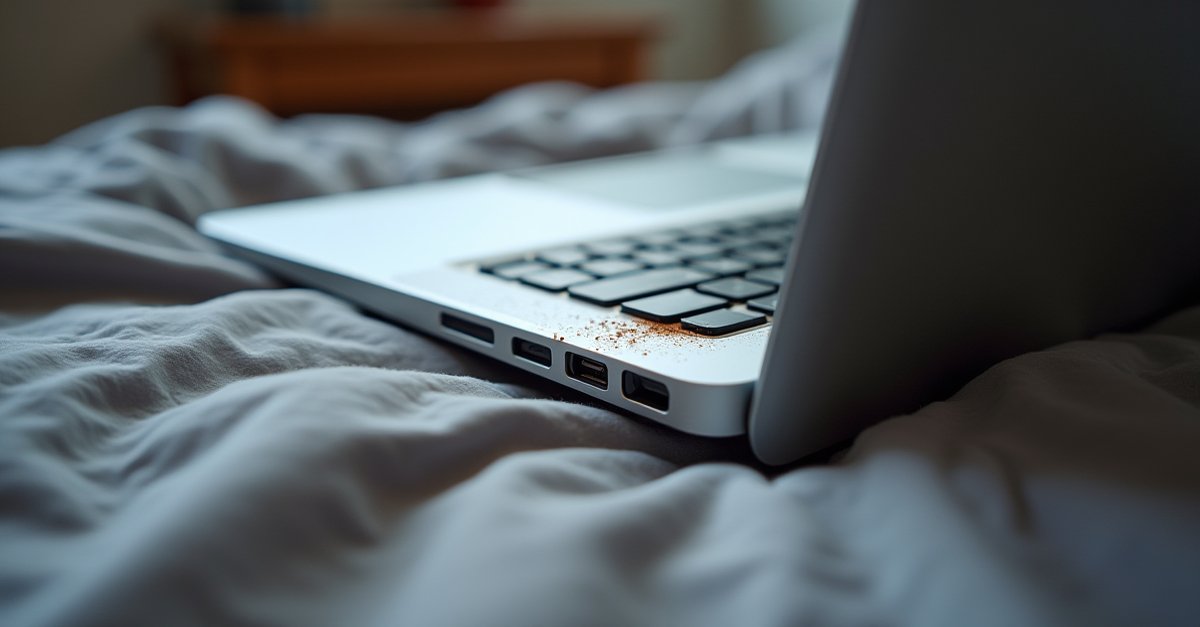
If your laptop sounds like it's trying to take off, feels hot enough to cook on, or randomly shuts down when you're in the middle of something, it's overheating. It's one of the most common problems I fix for customers in Windle, Eccleston, and the wider St Helens area, and it's almost always fixable.
Most of the time it's fixable without spending much, and often without replacing anything at all.
Signs Your Laptop Is Overheating
Some of these are obvious, some less so:
- The fans run loud constantly, not just during heavy tasks, but even when you're just browsing the web or reading emails
- The bottom or keyboard area is uncomfortably hot. Warm is normal under load, but if you can't comfortably rest your wrists on it, that's too hot
- The laptop slows down under load. It starts fine but gets progressively slower the longer you use it. This is thermal throttling: the CPU deliberately slows itself down to reduce heat
- Random shutdowns. The laptop just turns off without warning, especially during demanding tasks like video calls, gaming, or running multiple programs. This is the CPU's emergency thermal protection kicking in
- Fans stop working entirely. If the fan used to make noise but now the laptop is silent and hot, the fan may have failed. This is urgent: get it looked at before the heat damages other components
Laptop Temperature Ranges
What's Happening Inside
Every laptop has a cooling system designed to move heat away from the CPU (and GPU, if it has a dedicated graphics chip). The system works like this: a copper heat pipe draws heat from the processor to a heatsink with thin metal fins, and a fan blows air across those fins and out through a vent.
When that airflow path gets blocked, whether by dust, by the surface you're using the laptop on, or by a failed fan, heat builds up inside with nowhere to go.
Laptop Cooling System: Cross Section
The Main Causes
1. Dust-clogged heatsink and fans
This is the number one cause of laptop overheating, and I see it constantly. Over months and years, dust gets pulled into the laptop through the intake vents, carried by the fan, and packed against the heatsink fins. Eventually a solid mat of dust forms, almost like felt, that completely blocks the airflow.
The laptop's cooling system is still trying to work (the fan is spinning, the heat pipe is conducting), but the air can't get through the heatsink to carry the heat away. The result is temperatures climbing to 90°C, 95°C, even 100°C under load. The CPU throttles to survive, and the laptop grinds to a halt.
How quickly this happens depends on your environment. Houses with pets (especially cats and dogs that shed) clog up much faster. Smoky environments are bad too. Tar and smoke particles create a sticky layer that attracts and holds dust even more effectively.
2. Using the laptop on soft surfaces
Laptop intake vents are usually on the bottom. When you use the laptop on a duvet, pillow, sofa cushion, or your lap with a blanket, the vents get blocked. No air in means no cooling. The laptop heats up within minutes.
I see this a lot with customers who use their laptop in bed or on the sofa. The laptop is fine at a desk but overheats and shuts down when used anywhere else. The fix is simple: always use it on a hard, flat surface. More on that below.
Good Surfaces
- Hard desk or table
- Laptop stand or riser
- Cooling pad with fans
- Lap desk / tray
Bad Surfaces
- Bed or duvet
- Sofa cushion
- Carpet or rug
- Pillow or blanket on lap
3. Dried-out thermal paste
Between the CPU chip and the heat pipe sits a thin layer of thermal paste, a compound that helps conduct heat from the chip to the cooling system. Over time (usually 3–5 years), this paste dries out and loses its effectiveness. The heat pipe is physically touching the CPU, but the heat transfer becomes much less efficient.
When I clean a laptop's cooling system, I always replace the thermal paste at the same time. It's the difference between a laptop that runs at 65°C under load and one that runs at 85°C. On older laptops this alone can drop temperatures by 15–20°C.
4. Background processes eating CPU
Sometimes the laptop isn't dusty or blocked. The problem is software making the CPU work harder than it should. Windows updates downloading in the background, a browser with 40 tabs open, antivirus running a full scan, or malware silently eating resources.
Press Ctrl + Shift + Esc to open Task Manager and check the CPU column. If something is consistently using 30%+ of CPU when you're not doing anything demanding, that's your culprit. I cover this in more detail in my post on how to speed up a slow Windows 11 PC.
DIY Fixes You Can Try
Use a hard, flat surface
Always use your laptop on a desk, table, or a proper laptop tray. Never on a duvet, pillow, or soft cushion. If you like using it on the sofa, get a cheap laptop stand or even a large hardback book under it. Anything that keeps the bottom vents clear.
Check your vents aren't blocked
Look at where the vents are on your laptop, usually along the bottom and the back or sides. Make sure nothing is pushed against them. Some laptop cases and sleeves partially block vents when the laptop is in use. If you're using one, take it off.
Blow out the vents
A can of compressed air (available from any electronics shop for a few pounds) can dislodge surface dust from the vents without opening the laptop. Short bursts into the intake and exhaust vents can help, but if the dust is packed tight against the heatsink inside, this won't fully clear it. It's a temporary measure, not a proper fix.
Reduce CPU load
Switch your power plan from "Best performance" to "Balanced" or "Best power efficiency". This limits how hard the CPU works and reduces heat. On Windows 11, click the battery icon in the taskbar and use the slider. You'll lose some peak performance but gain a cooler, quieter laptop.
Also close unnecessary browser tabs and background programs. Each one uses CPU cycles and generates heat.
When You Need a Professional
The DIY fixes help, but if your laptop is 2+ years old and has never been cleaned internally, it almost certainly needs a proper strip-down, clean, and repaste. This means:
- Opening the laptop and removing the cooling assembly
- Clearing all dust from the fan blades, heatsink fins, and vents
- Removing the old thermal paste from the CPU (and GPU if applicable)
- Applying fresh, high-quality thermal paste
- Reassembling and testing temperatures under load
This is one of those repairs that makes a huge, immediately noticeable difference. Customers in Windle and Eccleston regularly bring me laptops they thought were dying. Slow, hot, fans screaming. After a clean and repaste they're back to running like new. Far cheaper than a replacement, and it extends the laptop's useful life by years.
I see overheating laptops so often that it made my list of the most common computer problems I fix. It really is that frequent.

Mark has been fixing computers since the late '90s and went self-employed in 2008. Based in St Helens since 2013, he works evenings and weekends from his home in Laffak — friendly, affordable repairs for PCs, laptops, and Macs. See reviews on Google
Laptop running hot?
If you're in Windle, Eccleston, St Helens, or anywhere in the surrounding areas and your laptop is overheating, running loud, or shutting down randomly, get in touch. A clean and repaste usually sorts it, and I'll have it back to you the same day.
★★★★★"Highly recommended and a top fella, took my sons laptop at 7 on a Saturday night and picked it up at 9, completely fixed and running smoothly, ill 100% be passing his number to my friends, thanks"
— Craig Perry, via Google