Slow Internet in St Helens? Here's What's Probably Causing It
"My internet's slow" is one of the most common things I hear from customers in St Helens. Whether you're in Rainhill, Eccleston, or Haydock, the same problems come up again and again. And most of the time, it's not actually your broadband speed that's the issue. It's something in your house.
Most of the time it's one of these.
1. Your Router Is in the Wrong Place
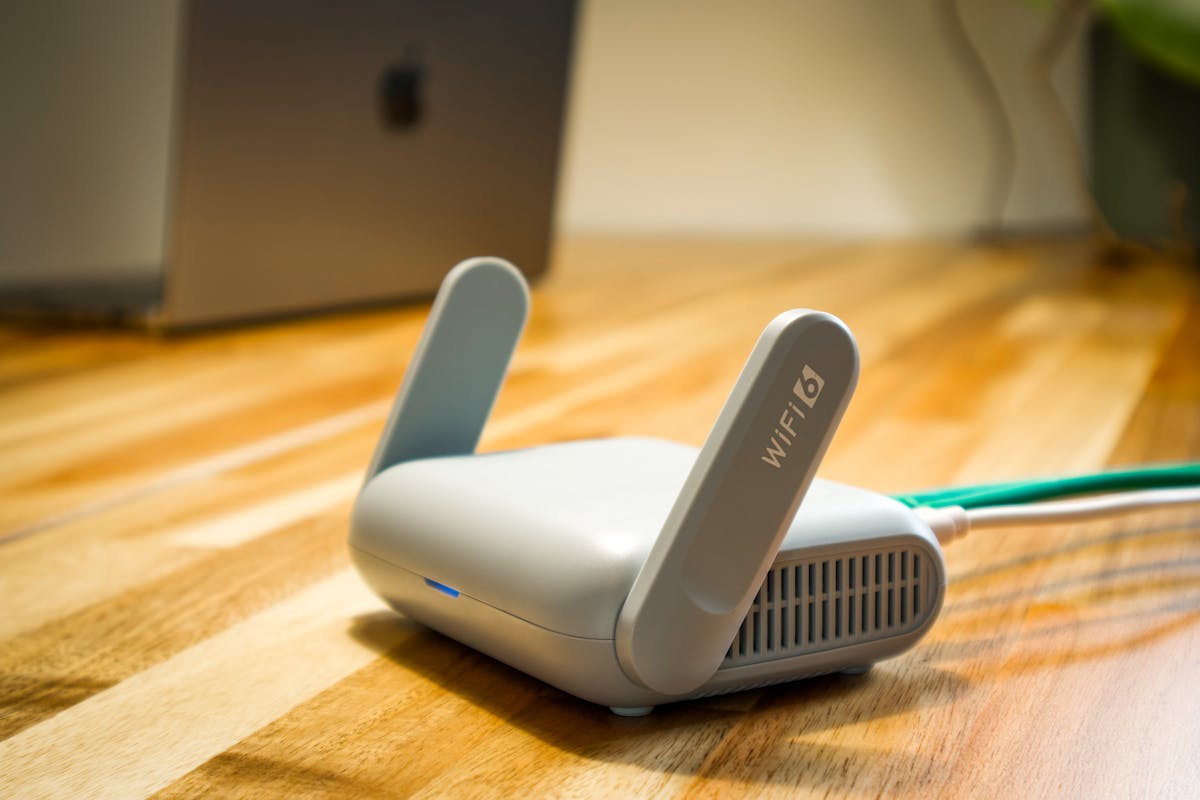
This is the single biggest cause of slow Wi-Fi I see. The router gets plugged in wherever the phone socket or master socket happens to be, usually a hallway, a corner of the living room, or tucked behind the TV. Then people wonder why the signal is weak upstairs or in the back bedroom.
Wi-Fi signal degrades with every wall, floor, and large object it has to pass through. Older houses in St Helens and surrounding areas like Billinge and Rainford tend to have thicker internal walls (sometimes solid brick rather than plasterboard), which kills signal much faster than modern builds.
Ideally your router should be:
- Central in your home, not in a far corner
- Out in the open, not inside a cupboard, behind a TV, or on the floor
- Elevated, on a shelf or table, not on the floor. Wi-Fi radiates outward and slightly downward
- Away from interference: microwaves, baby monitors, cordless phones, and fish tanks all interfere with Wi-Fi signal
2. Too Many Devices on One Band
Most modern routers broadcast on two frequencies: 2.4GHz and 5GHz. A lot of people don't know the difference and just connect everything to whichever network appears first.
- 2.4GHz: slower but travels further and goes through walls better. Good for devices that are far from the router or don't need high speed (smart speakers, security cameras, smart plugs)
- 5GHz: faster but shorter range, struggles more with walls. Best for devices close to the router that need speed (laptops, gaming consoles, streaming sticks)
If you've got 15 devices all crammed onto the 2.4GHz band, they're all competing for the same limited bandwidth. Splitting them sensibly between the two bands makes a noticeable difference.
2.4 GHz
- Slower speeds (up to ~100 Mbps)
- Better range through walls
- More prone to interference
- Only 3 non-overlapping channels
5 GHz
- Much faster (up to ~1 Gbps)
- Shorter range, weaker through walls
- Less interference from neighbours
- Many more available channels
Check your router settings. Some routers show both networks separately (e.g. "BT-Hub-XXXX" and "BT-Hub-XXXX-5G"), while others combine them into one name and try to manage it automatically. If yours combines them and you're having speed issues, it can be worth separating them so you have control over which devices use which band.
3. Your Router Is Old or Rubbish
The free router your ISP gave you five years ago was a budget device when it was new. It's not getting any better with age. ISP-provided routers are designed to be cheap and "good enough" for a basic setup, but if you've got a busy household with lots of devices, they struggle.
You'll know the router is the bottleneck if:
- Internet slows down noticeably when multiple people are using it at the same time
- You need to restart the router regularly to get it working properly again
- The Wi-Fi drops out completely for a few seconds, then reconnects
- It's warm to the touch (overheating routers throttle their performance)
Upgrading to a decent third-party router (or a mesh Wi-Fi system for larger houses) can transform your internet experience without changing your broadband package at all. I've set these up for customers across St Helens, Sutton, and Thatto Heath and the difference is usually immediate.
4. Wi-Fi Dead Zones
Some houses just have spots where Wi-Fi doesn't reach. A thick chimney breast in the middle of the house, a loft conversion two floors above the router, an extension at the back: the signal simply can't get there reliably.
A few ways to deal with it:
- Mesh Wi-Fi system: multiple units placed around your home that create a single seamless network. They're the best solution for larger or awkwardly shaped houses. Brands like TP-Link Deco, Google Nest WiFi, and Ubiquiti all do good ones
- Powerline adapters: plug one into a socket near your router, another in the room with poor signal. They send the internet through your electrical wiring. Results vary depending on the age and quality of your wiring (newer builds in areas like Haydock and Newton-le-Willows tend to work well, older wiring can be hit and miss)
- Ethernet cable: if you can run a cable (even along a skirting board or through a hole in the floor), it's always the most reliable option. Gaming PCs, smart TVs, and work-from-home setups benefit hugely from a wired connection
5. It's Actually Your Broadband Speed
Sometimes the Wi-Fi is fine and the problem genuinely is the broadband connection coming into your house. This is especially true in parts of St Helens where full fibre (FTTP) isn't available yet and you're still on a copper phone line.
The further your house is from the street cabinet, the slower your connection. That's just how copper broadband (ADSL and FTTC) works. Some areas of Clock Face and Bold are on longer copper runs, which means lower speeds regardless of which ISP you're with.
Check what you're actually getting vs what you're paying for:
- Plug a laptop or PC directly into the router with an ethernet cable (this takes Wi-Fi out of the equation)
- Run a speed test at speedtest.net
- Compare the result to what your ISP promised when you signed up
If the wired speed is close to what you're paying for, the problem is your Wi-Fi, not your broadband. If the wired speed is significantly lower, it's time to call your ISP, or check if full fibre is available at your address. CityFibre and Openreach have been rolling out FTTP across parts of St Helens, Rainhill, and Eccleston, so it's worth checking even if it wasn't available a year ago.
6. Channel Congestion
Wi-Fi routers broadcast on specific channels. Think of them like lanes on a motorway. In terraced streets and flats, your neighbours' routers are all broadcasting on the same channels, and they interfere with each other. This is a common problem in the more densely built-up parts of St Helens town centre and Thatto Heath.
Most routers are set to "auto" channel selection, which should handle this, but some do a poor job of it and stick to congested channels. You can log into your router settings and manually change the channel. For 2.4GHz, channels 1, 6, and 11 are the only ones that don't overlap with each other, so pick whichever is least used by your neighbours. For 5GHz there are many more channels and congestion is rarely an issue.
Free apps like WiFi Analyzer (Android) can show you which channels are crowded in your area.
7. Background Devices Eating Your Bandwidth
Modern homes have a lot of connected devices, and many of them are quietly using bandwidth in the background without you realising. Windows updates downloading, phones backing up photos to the cloud, a smart TV streaming in 4K in another room, a games console downloading a 50GB update.
If your internet suddenly feels slow, check what else is happening on the network. A single 4K stream uses about 25Mbps. If your broadband speed is 40Mbps, that's more than half your bandwidth gone on one device.
Some routers have a QoS (Quality of Service) setting that lets you prioritise certain devices or types of traffic. If your router supports it, prioritising your work laptop or gaming console can help when the network is busy.
8. Your DNS Is Slow
DNS is the system that converts website names (like google.com) into IP addresses. Every time you visit a website, your device does a DNS lookup first. Most people use their ISP's DNS servers by default, and some ISPs have slow DNS.
Switching to a faster DNS server is free and takes two minutes. The best options:
- Cloudflare:
1.1.1.1and1.0.0.1 - Google:
8.8.8.8and8.8.4.4
You can change this on your router (so every device benefits) or on individual devices. On Windows, go to Settings → Network & Internet → Wi-Fi → your network → DNS server assignment → Edit and enter the addresses above.
This won't make your downloads faster, but it can make websites feel snappier to load, especially the initial connection.
When to Call Your ISP
If you've checked everything above and your wired speed test still shows speeds well below what you're paying for, the problem is on your ISP's end. Common issues:
- Line fault: physical damage to the cable between your house and the cabinet
- Exchange congestion: too many people in your area sharing the same capacity, especially during peak evening hours
- Faulty master socket. The socket where broadband enters your house can develop faults over time
Call your ISP and tell them your wired speed test result. This skips the "have you tried turning it off and on again" stage and gets you to the actual diagnosis faster.

Mark has been fixing computers since the late '90s and went self-employed in 2008. Based in St Helens since 2013, he works evenings and weekends from his home in Laffak — friendly, affordable repairs for PCs, laptops, and Macs. See reviews on Google
Still struggling with slow internet?
If you're in St Helens, Rainhill, Eccleston, Haydock, Newton-le-Willows, or anywhere in the surrounding areas and you can't work out why your internet is slow, I can come and take a look. Router placement, Wi-Fi setup, mesh systems, or just working out where the problem actually is. Get in touch.
★★★★★"Excellent response and service, Thanks for sorting out our PC problems and getting all our other kit talking to each other, cheers Ian"
— Ian, via Google